ZUGFeRD, Factur-X and XRechnung invoices with an API
Turn JSON into a ZUGFeRD / Factur-X invoice PDF or an XRechnung with a REST API, checked by the official KoSIT and veraPDF validators. From an invoice template to the first e-invoice with cURL, Node.js, Python or Postman, plus how to check the e-invoices you receive.
Accounting systems want invoices as data, not as pictures. Since 2025, every business in Germany must be able to receive e-invoices, and sending them becomes mandatory from 2027. This tutorial builds the whole path with Dynamic Document API in about 15 minutes. You will:
- pick an invoice template from the gallery and make it your own,
- publish it and create a test API key,
- send your invoice data as JSON and get a finished PDF back, with cURL, Node.js, Python or Postman,
- turn the same request into a ZUGFeRD / Factur-X e-invoice that passes the official validators, and switch it to XRechnung for German public-sector customers,
- check e-invoices you receive with the same validators.
Prefer to watch? This 10-minute video explains ZUGFeRD, Factur-X and XRechnung and builds the same invoice in the dashboard and in Postman.
This is the invoice you'll have at the end. It's generated from about 80 lines of JSON, and the same data is embedded in it as XML:
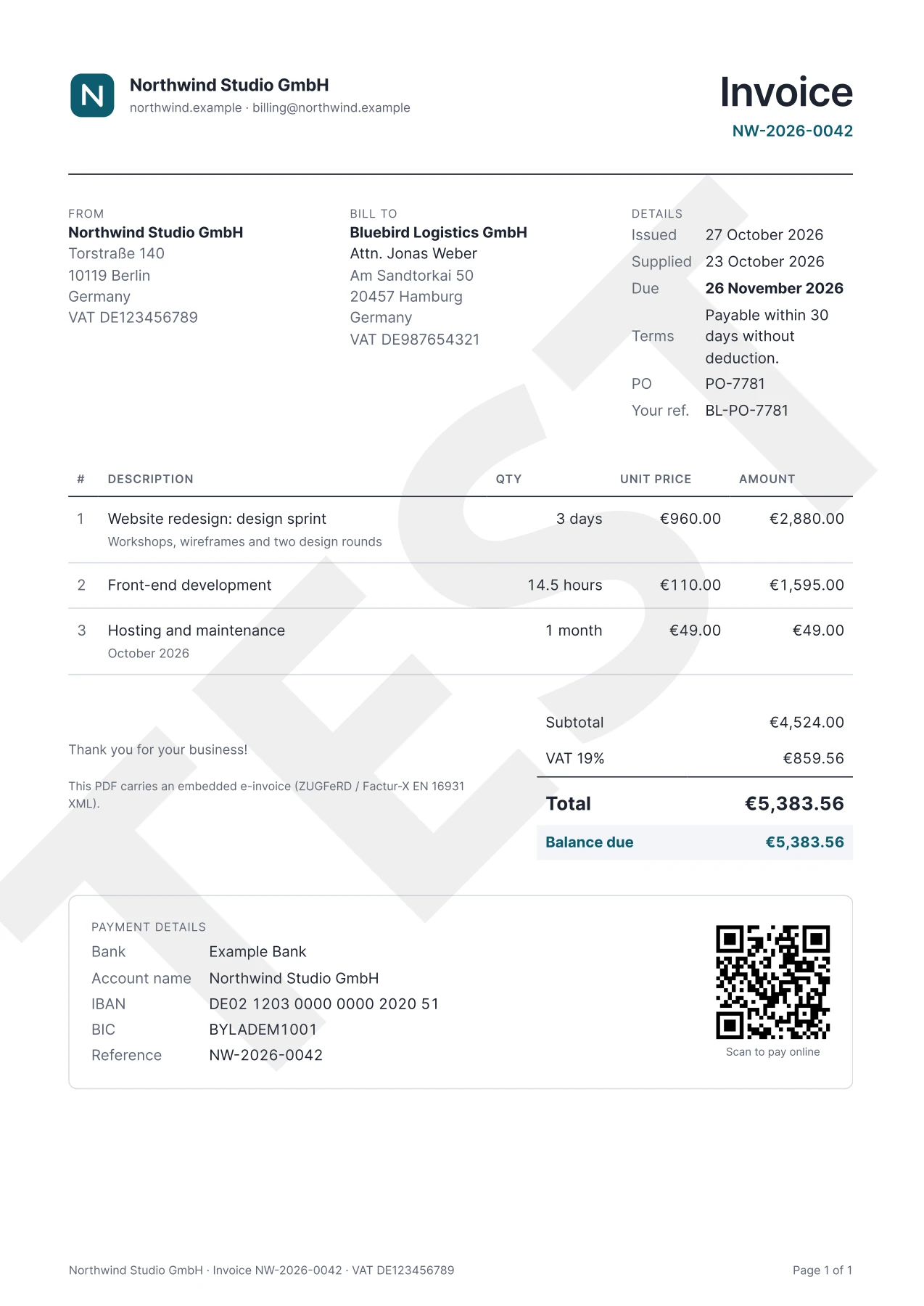
The TEST watermark appears because the tutorial uses a free test key. Live keys produce clean PDFs.
ZUGFeRD, Factur-X and XRechnung in short
An e-invoice is the invoice as machine-readable XML that follows the European standard EN 16931. It comes in two forms:
- Hybrid PDF (ZUGFeRD / Factur-X): a normal-looking invoice PDF, converted to the archival format PDF/A-3, with the XML embedded as an attachment. People read the PDF; software reads the XML. ZUGFeRD 2.x and Factur-X are technically identical; Factur-X is the name used in France.
- Standalone XML (XRechnung, UBL, CII): just the XML file. XRechnung is the German national profile of EN 16931, and German public authorities require it.
A PDF without the XML isn't an e-invoice, however good it looks. Neither are the two smallest ZUGFeRD profiles, MINIMUM and BASIC WL, in Germany: they carry only the totals.
When e-invoices become mandatory depends on the country:
- Germany: every business must be able to receive e-invoices since 1 January 2025. Sending them becomes mandatory on 1 January 2027 for businesses with more than €800,000 in prior-year revenue, and on 1 January 2028 for every business that invoices other businesses in Germany.
- France: every business must be able to receive e-invoices from 1 September 2026, when large and mid-sized businesses must also start sending them. Smaller businesses follow on 1 September 2027. Invoices are exchanged through certified platforms, and Factur-X is one of the accepted formats.
- Between EU countries: from 1 July 2030, the EU's VAT in the Digital Age (ViDA) rules require e-invoices following EN 16931 for B2B sales from one EU country to another.
You don't have to maintain a version of each invoice per format: you keep one invoice model, and the API turns it into the format your customer needs.
What you need
- A Dynamic Document API account. The Free plan is enough for the PDF part and for checking received e-invoices, and no card is required.
- A terminal with cURL, or Node.js 18+ (it has
fetchbuilt in), or Python 3 with therequestspackage (pip install requests). Postman works too. - For creating e-invoices: e-invoices are included from the Growth plan. Test renders never cost anything, but the feature itself has to be on your plan. On Free and Starter, everything in this tutorial works except the embedded XML; you get a regular PDF instead.
All requests in this tutorial use a test key. Test renders are free, carry a TEST watermark and are deleted after 24 hours, so you can experiment as much as you like.
1. Create your account
Sign up at https://app.dynamicdocumentapi.com/signup with GitHub, Google or an email address. The workspace name is optional; it's usually your company or team, and it appears in your dashboard.
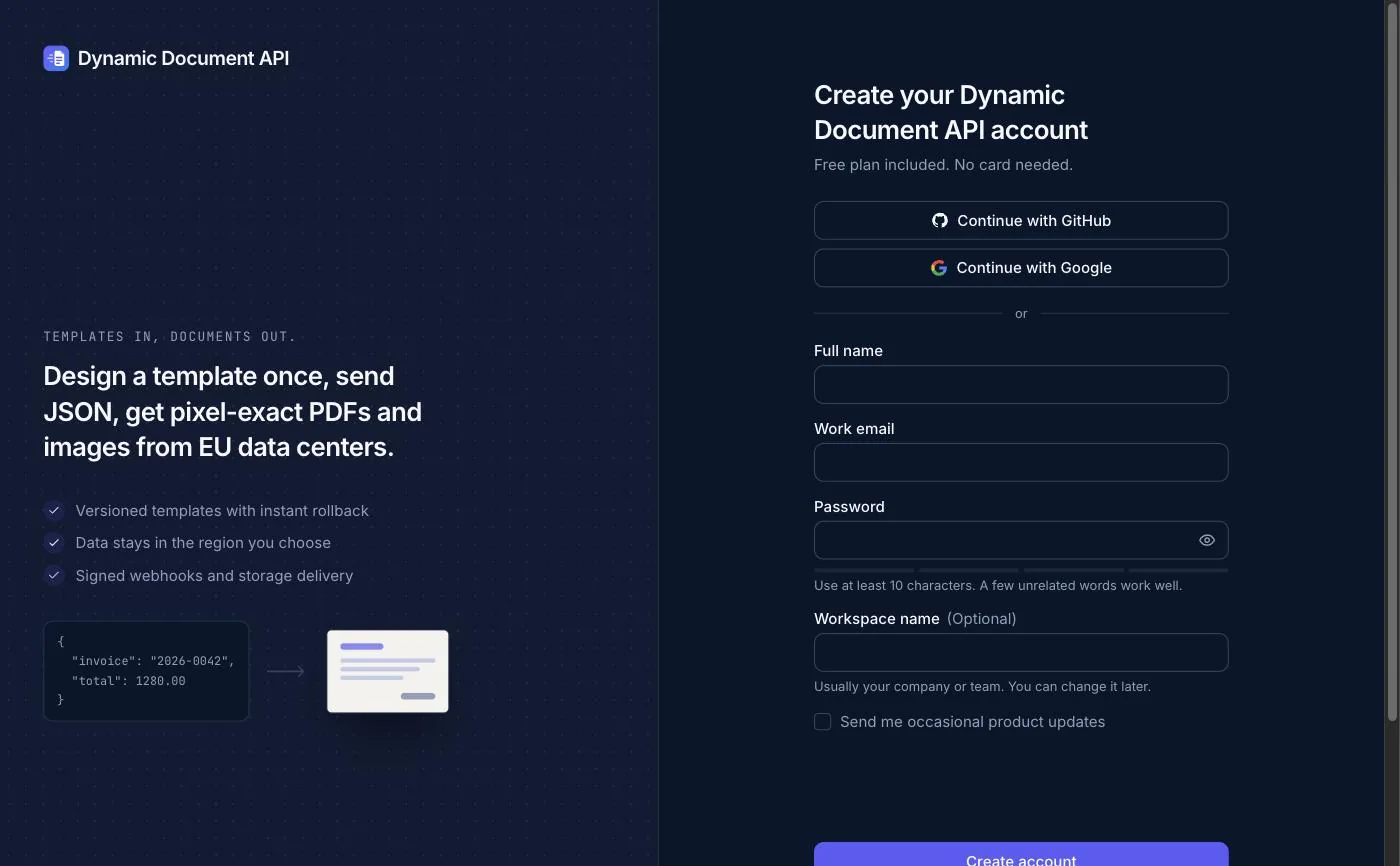
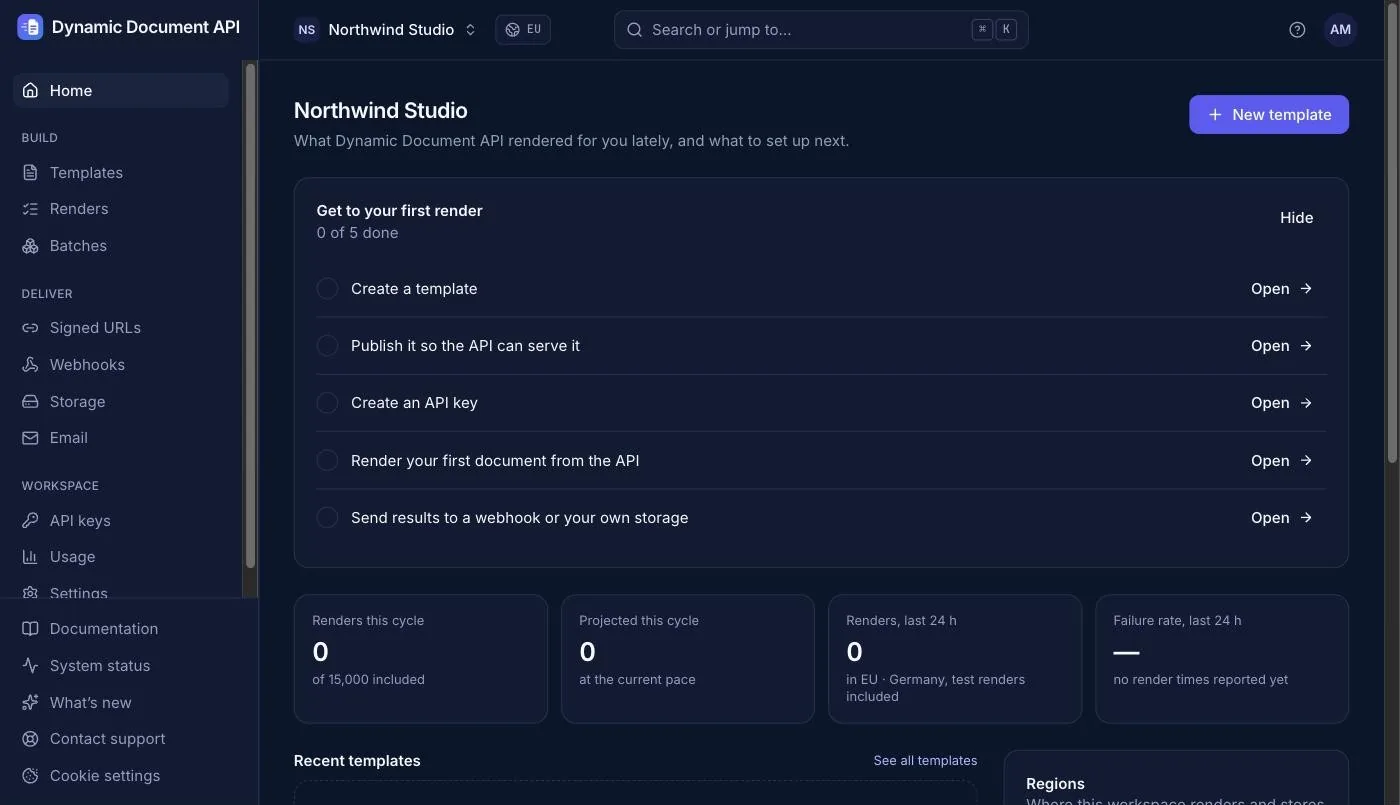
After signing up you land on your workspace home. The checklist Get to your first render shows exactly the five steps this tutorial walks through.
2. Pick an invoice template
Click New template. You can start from a blank page, but the gallery is faster: choose Invoices in the category list. There are several invoice designs, from a freelancer invoice to a German E-Rechnung layout.
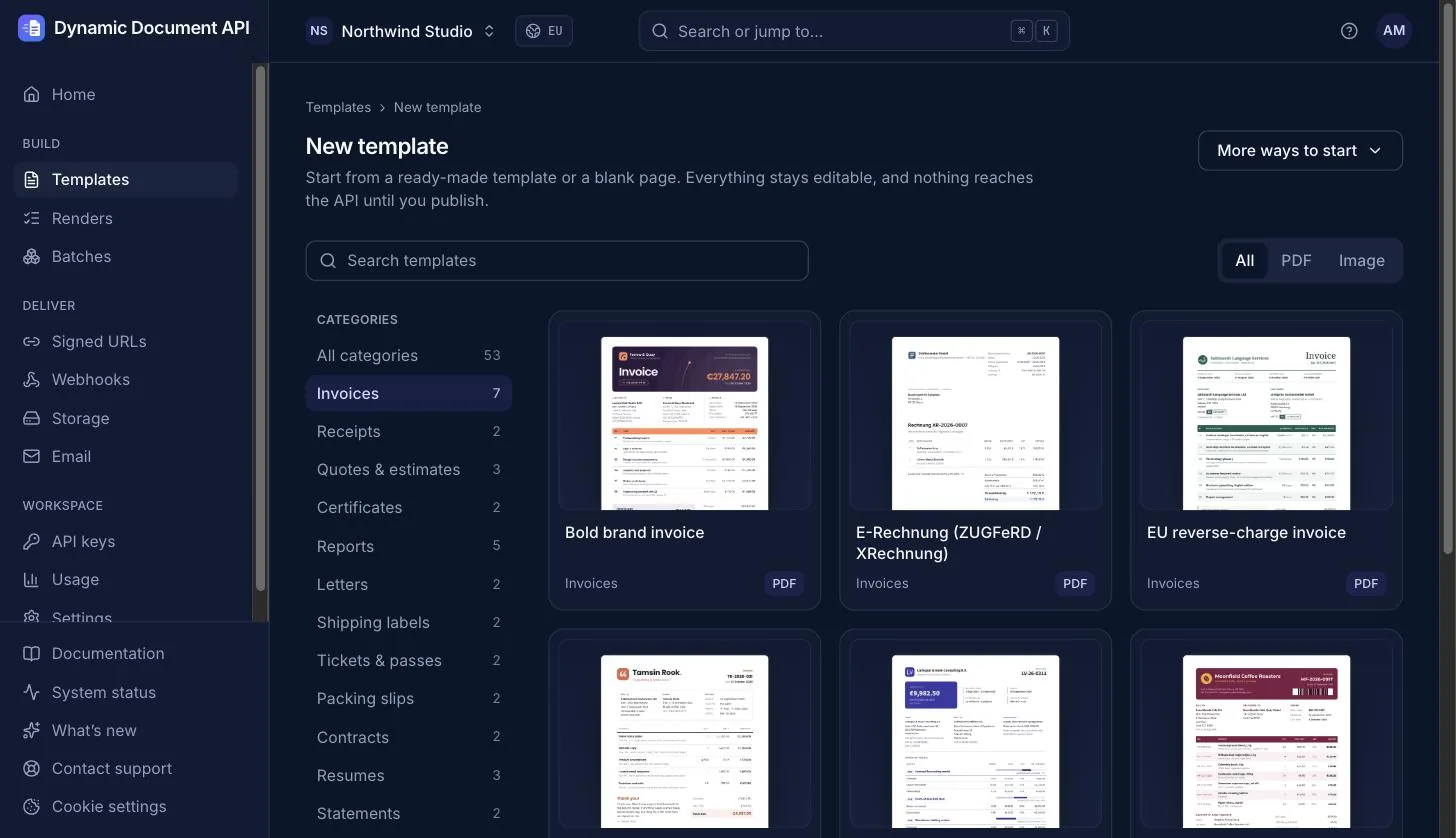
For this tutorial we use the Standard invoice: a clean A4 invoice for service businesses with itemised lines, VAT, payment details, a QR code for online payment and page numbers. Click it to see a preview, then click Use this template.
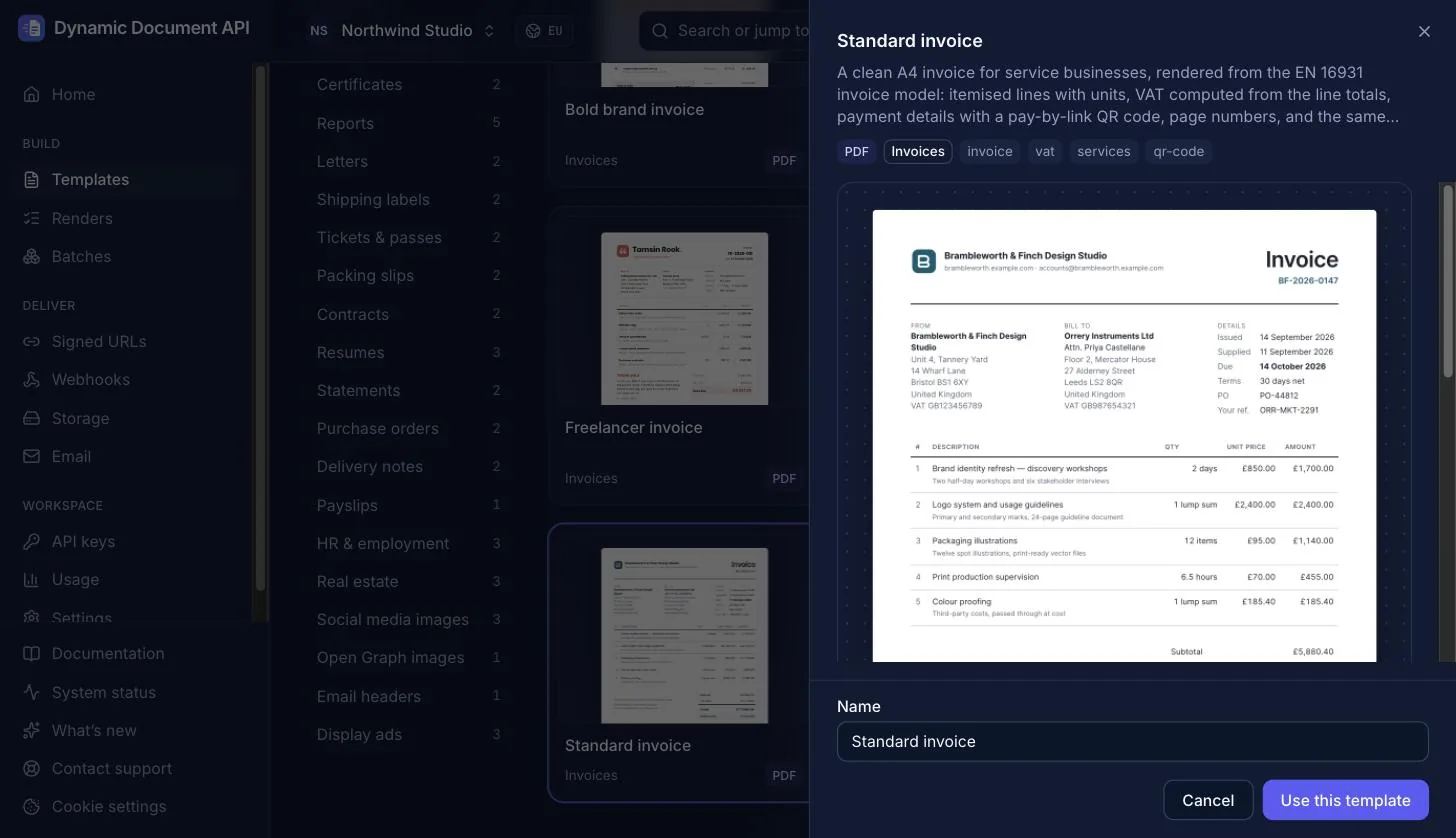
Why this template is a good starting point: it reads the invoice from a structured invoice model (seller, buyer, lines, tax, payment) instead of from arbitrary fields. The same data that fills the PDF is turned into the e-invoice, so you never maintain two versions of an invoice.
3. Get to know the template, and make it yours
The template opens in the editor. On the right you see a live PDF preview; on the left there are tabs for the template's parts.
The Data tab: what the API expects
Open the Data tab. It contains the sample data the preview renders with. This is the most important tab for an API integration, because the API takes exactly the same shape in its data field. Whatever you see here is what your code will send.
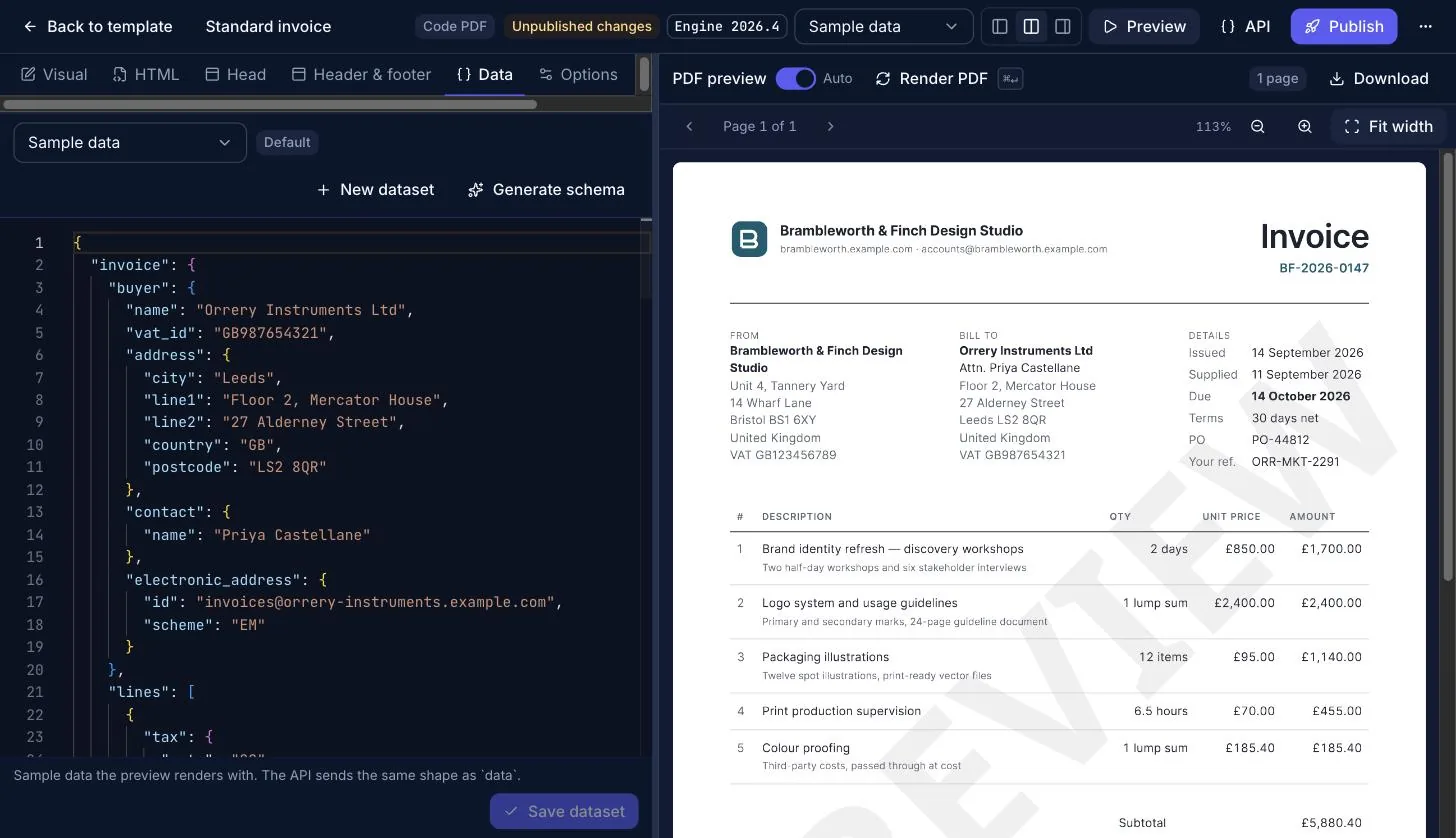
The top-level key is invoice, and inside it you'll find seller, buyer, lines, payment and so on. A few extra keys outside the invoice, website, bank_name and payment_link, are only for display: they print the website in the header, the bank name in the payment box and the QR code.
The HTML tab: change the design
The template is plain HTML and CSS with placeholders such as {{ inv.number }}, {% for line in inv.lines %} or {{ value | format_currency(cur, loc) }}. If you know HTML, you can change anything. The template language reference lists every filter and tag.
As an example, let's replace the sample company's "B" logo with an "N" for our company, Northwind Studio. In the HTML tab, the logo is a small inline SVG in the <header>. Changing the path to M13 28V12l14 16V12 draws an N, and the preview updates immediately:
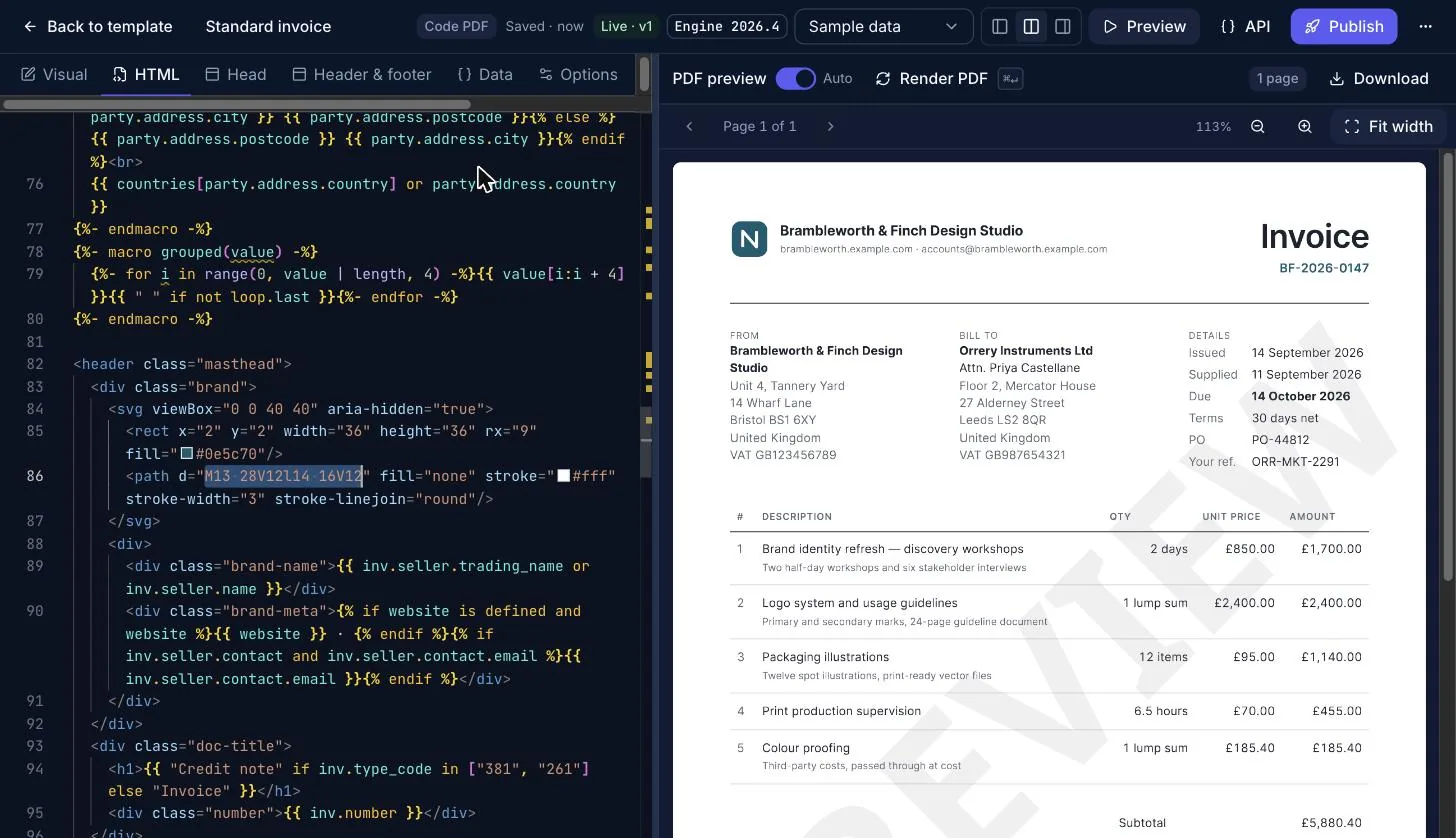
In a real project you'd paste your own SVG logo here, or an <img> tag. Your changes are saved as a draft automatically ("Saved · now" in the top bar), but the API doesn't see them until you publish.
4. Publish the template
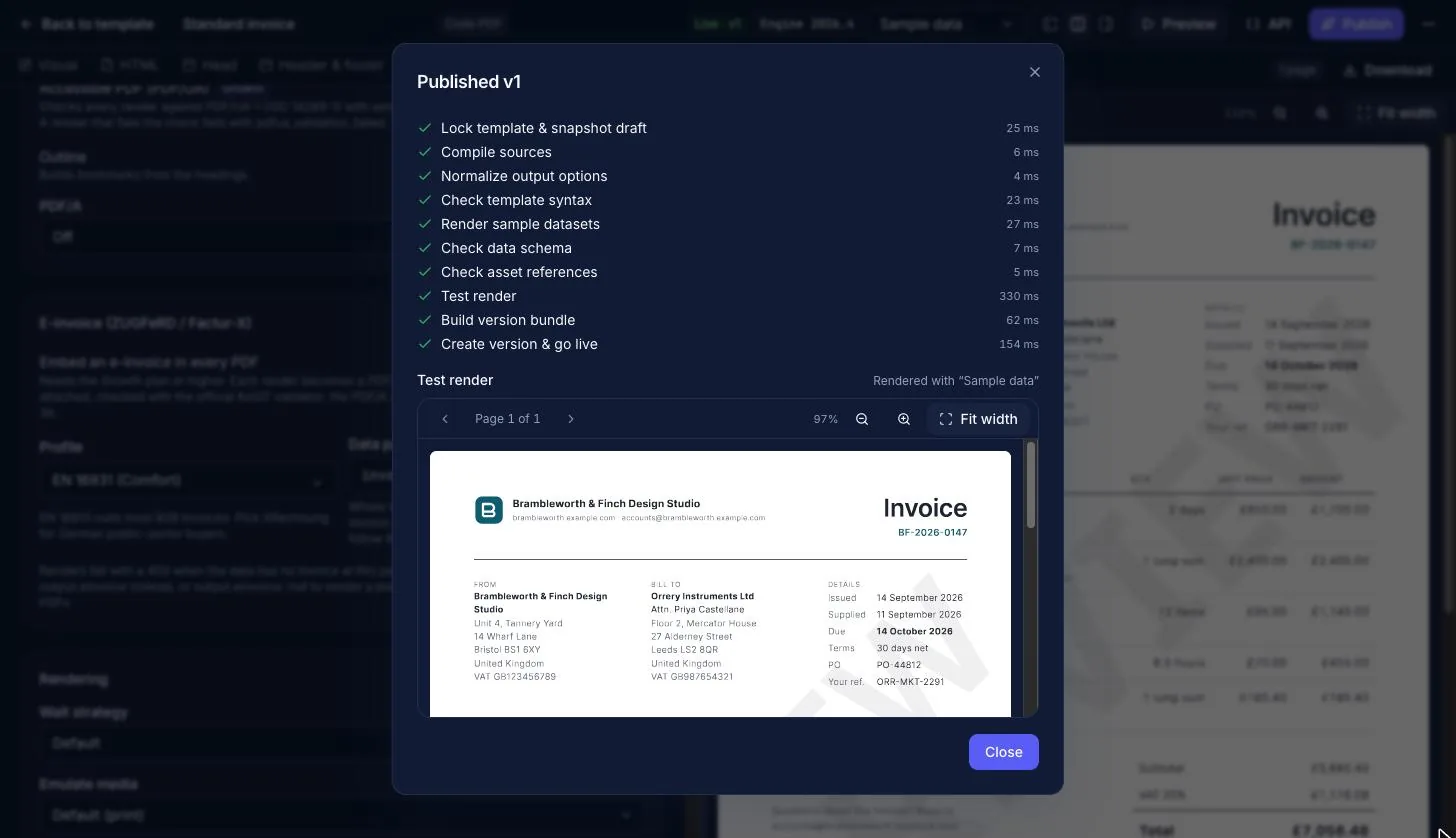
Click Publish, add a short note such as "First version" and confirm.
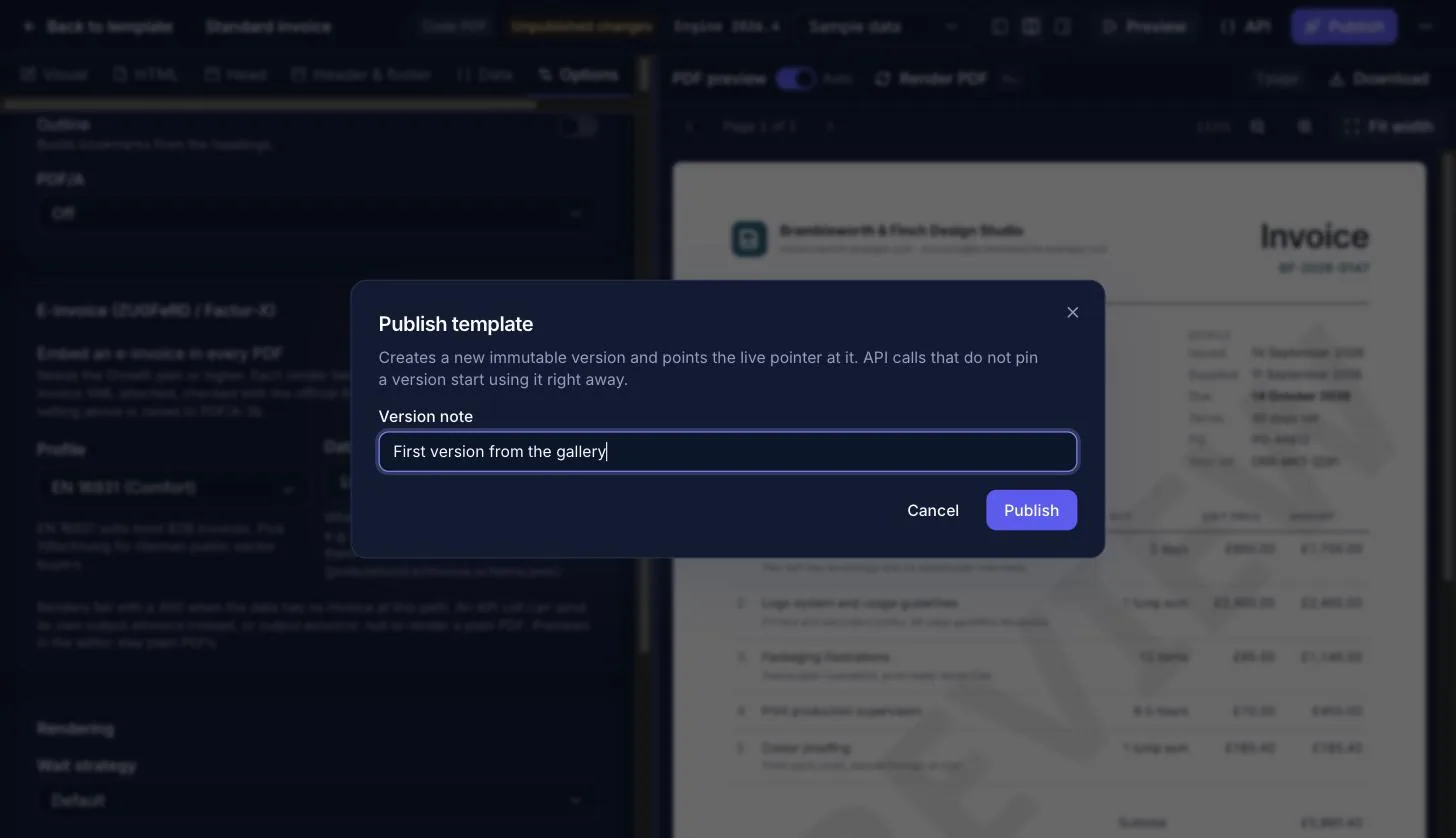
Publishing checks the template (syntax, sample data, a test render) and creates an immutable version. If one of the checks fails, nothing goes live and the dialog says why. The badge in the top bar changes to Live · v1. Every API call that doesn't ask for a specific version uses the live version, so you can improve the design later and publish v2 without touching your code. If something goes wrong, you roll back to the previous version.
Now click the API button in the top bar. The panel shows a ready-to-run request for this template, in cURL, TypeScript, Python, PHP, Ruby, Go, Java or C#, including your template ID (tpl_…):
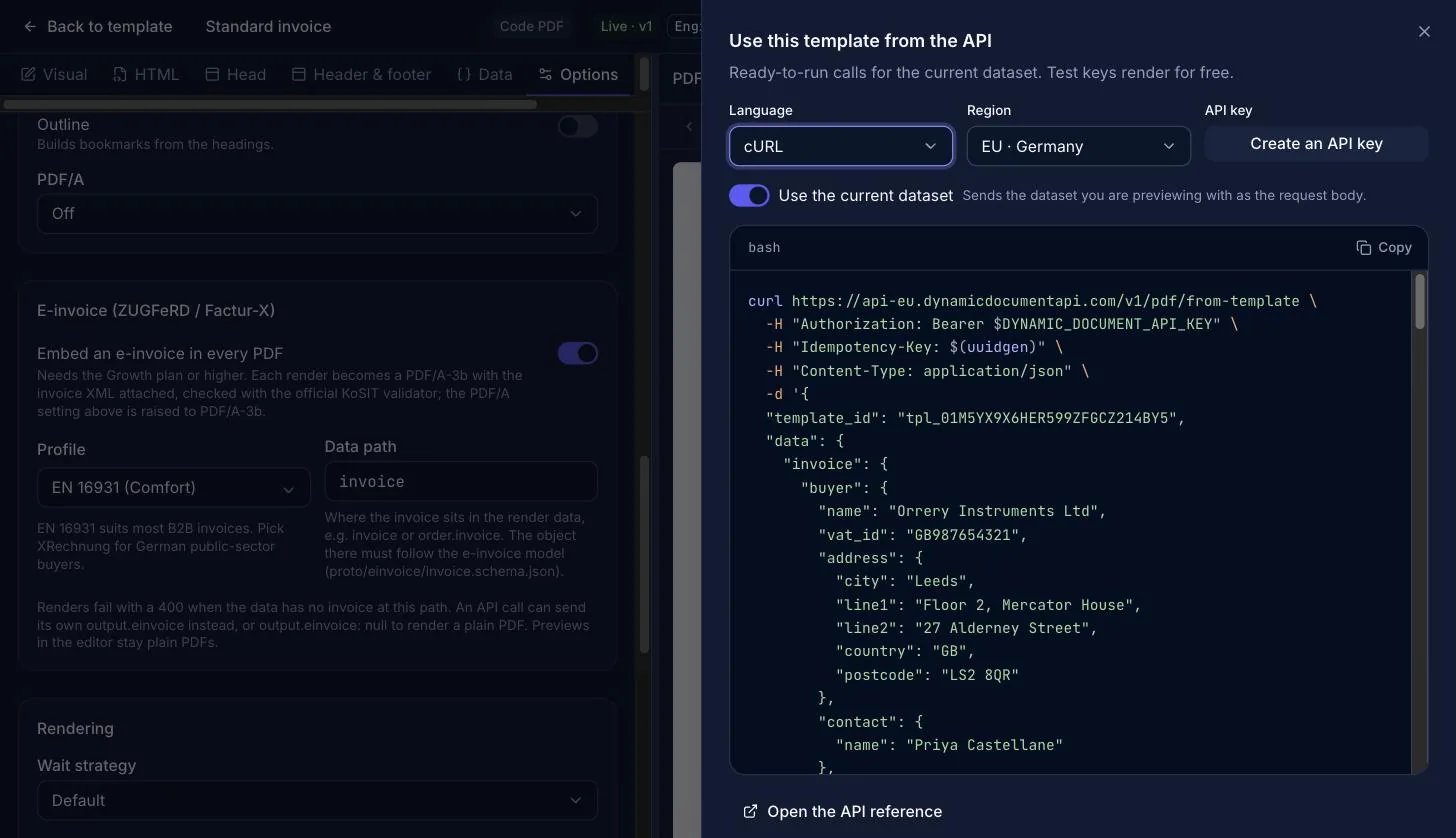
Copy the template ID. You'll need it in a moment.
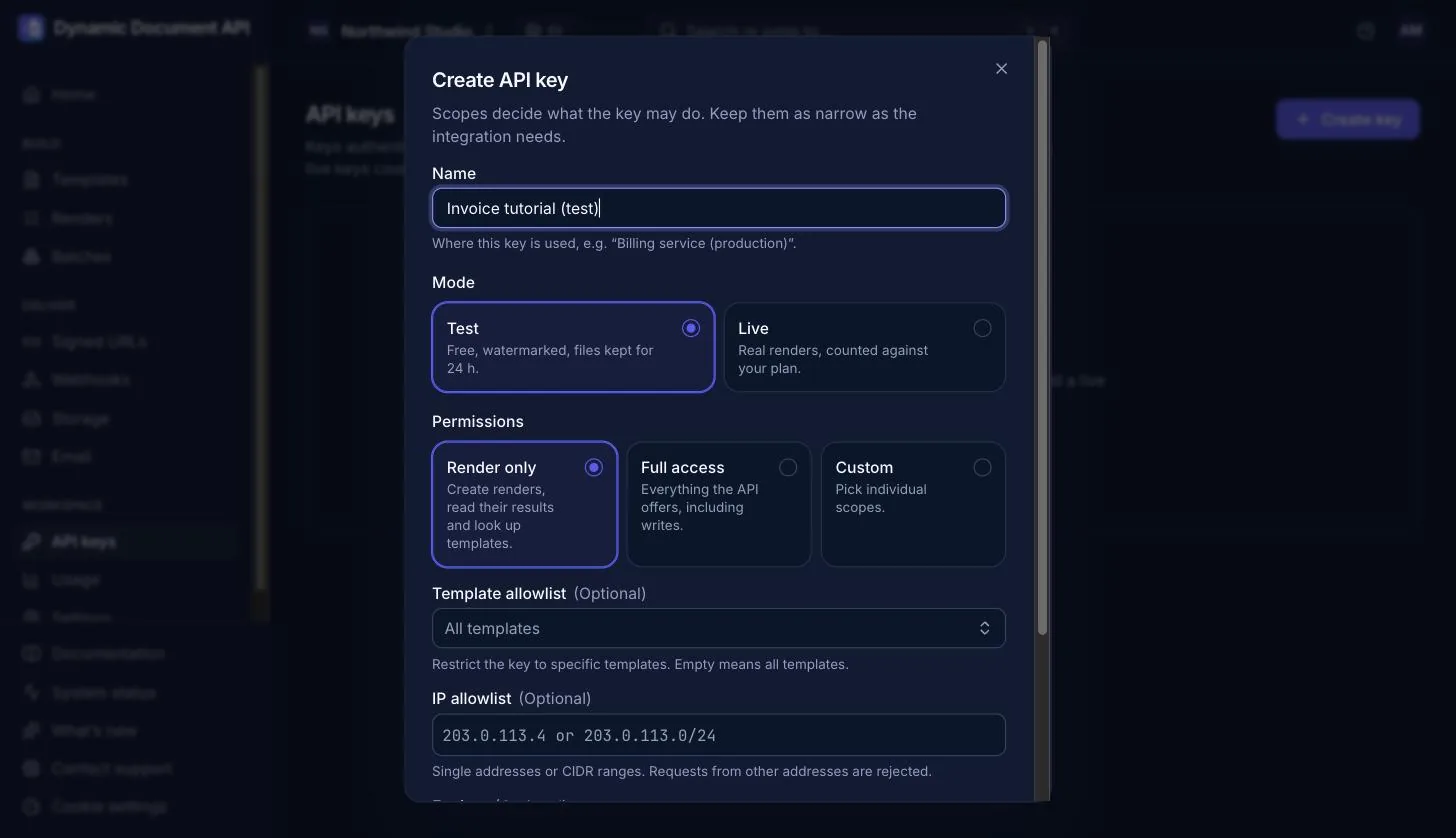
5. Create a test API key
Go to API keys in the sidebar and click Create key.
- Name: anything that tells you where the key is used, for example "Invoice tutorial (test)".
- Mode: Test. Test keys are free, watermark their output and keep files for 24 hours.
- Permissions: Render only. It can create renders, read their results and look up templates, and nothing else. Keep keys as narrow as your integration needs.
- Template allowlist and IP allowlist: optional. Leave them empty while you try things out; for a live key, see step 11.
- Expires: pick a date, for example a month from now. The key stops working at the end of that day, so a test key you forget about doesn't stay valid forever.
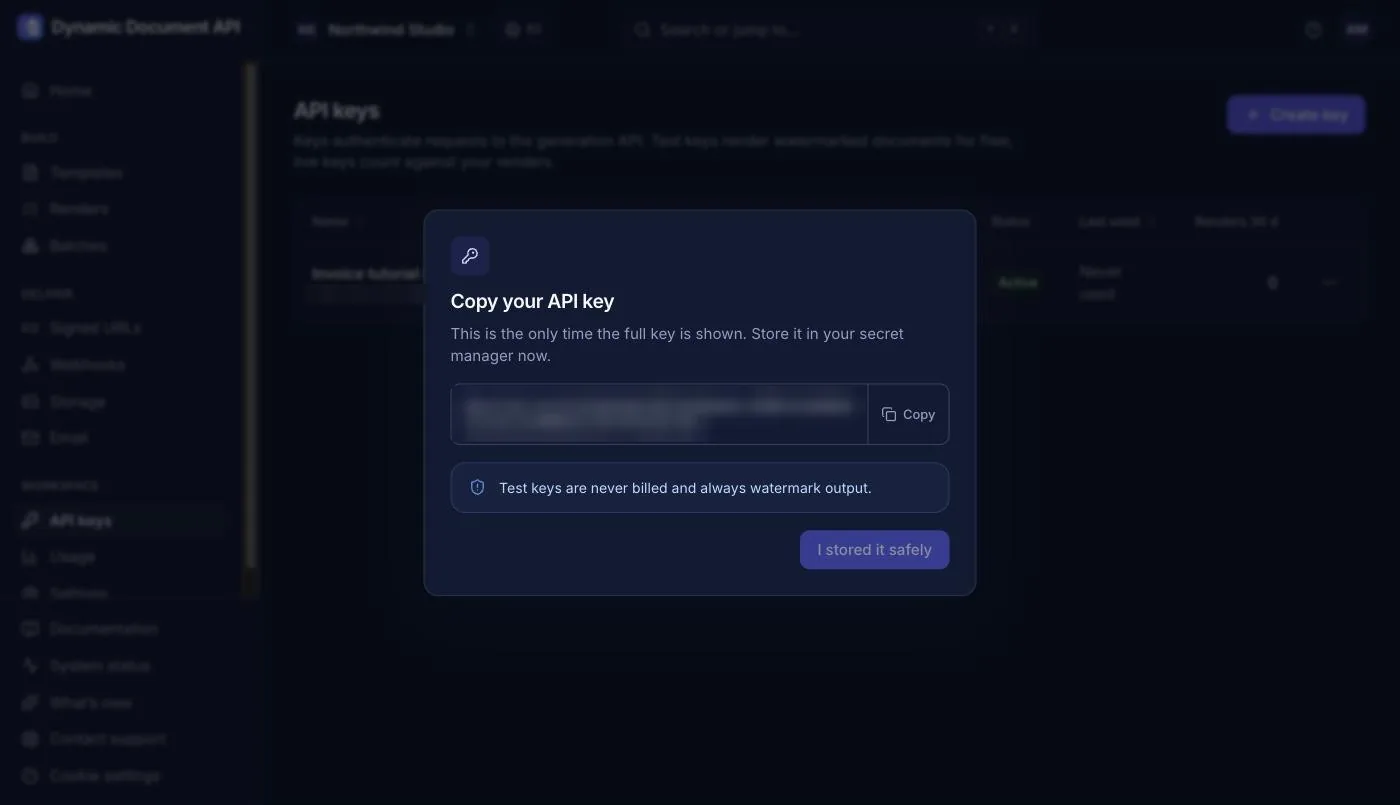
Because API keys are sensitive, the dashboard asks you to confirm your identity once more, for example with your password. Then it shows the key, only this once. Click Copy.
In your terminal, store the key and the template ID in environment variables, so they never end up in your code:
export DYNAMIC_DOCUMENT_API_KEY="dda_test_…"   # the key you just copied
export TEMPLATE_ID="tpl_…"                      # from the API panel in step 4
6. Prepare the invoice data
Create a folder for the tutorial and save this file as invoice.json. It has the same shape as the template's sample data, with our own company and customer:
{
  "invoice": {
    "number": "NW-2026-0042",
    "issue_date": "2026-10-27",
    "due_date": "2026-11-26",
    "currency": "EUR",
    "buyer_reference": "BL-PO-7781",
    "order_reference": "PO-7781",
    "payment_terms": "Payable within 30 days without deduction.",
    "delivery": { "date": "2026-10-23" },
    "seller": {
      "name": "Northwind Studio GmbH",
      "vat_id": "DE123456789",
      "electronic_address": { "id": "billing@northwind.example", "scheme": "EM" },
      "address": { "line1": "Torstraße 140", "city": "Berlin", "postcode": "10119", "country": "DE" },
      "contact": { "name": "Accounts team", "phone": "+49 30 1234 5678", "email": "billing@northwind.example" }
    },
    "buyer": {
      "name": "Bluebird Logistics GmbH",
      "vat_id": "DE987654321",
      "electronic_address": { "id": "ap@bluebird.example", "scheme": "EM" },
      "address": { "line1": "Am Sandtorkai 50", "city": "Hamburg", "postcode": "20457", "country": "DE" },
      "contact": { "name": "Jonas Weber" }
    },
    "payment": {
      "means_code": "58",
      "remittance_information": "NW-2026-0042",
      "credit_transfers": [
        { "account_id": "DE02120300000000202051", "account_name": "Northwind Studio GmbH", "bic": "BYLADEM1001" }
      ]
    },
    "lines": [
      {
        "quantity": "3",
        "unit": "DAY",
        "price": { "net": "960.00" },
        "tax": { "category": "S", "rate": "19" },
        "item": { "name": "Website redesign: design sprint", "description": "Workshops, wireframes and two design rounds" }
      },
      {
        "quantity": "14.5",
        "unit": "HUR",
        "price": { "net": "110.00" },
        "tax": { "category": "S", "rate": "19" },
        "item": { "name": "Front-end development" }
      },
      {
        "quantity": "1",
        "unit": "MON",
        "price": { "net": "49.00" },
        "tax": { "category": "S", "rate": "19" },
        "item": { "name": "Hosting and maintenance", "description": "October 2026" }
      }
    ],
    "notes": [{ "text": "Thank you for your business!" }]
  },
  "website": "northwind.example",
  "bank_name": "Example Bank",
  "payment_link": "https://pay.example.com/i/NW-2026-0042"
}
A few things worth knowing about this format:
- There are no totals in the data. You send quantities, net prices and tax rates; the API computes line amounts, the VAT breakdown and the totals, and the template prints them. There are no totals to get wrong, and the PDF and the embedded XML always agree to the cent.
- Amounts and quantities are strings (
"960.00","14.5"). That avoids floating-point rounding surprises. - Units are UN/ECE codes:
DAY,HUR(hour),MON(month),C62(item). The template prints them as "3 days", "14.5 hours", "1 month". - Tax category
Sis the standard VAT rate. Other categories cover zero-rated, exempt and reverse-charge invoices; the gallery has a dedicated EU reverse-charge template. means_code: "58"means SEPA credit transfer. The IBAN is printed in groups of four, and the payment reference defaults to the invoice number.
7. Render the invoice
Now the actual API call. It's a single POST /v1/renders request with four parts:
inputsays what to render: the template with your ID,datais the content ofinvoice.json,outputasks for a PDF and sets the file name,delivery: { "type": "binary" }returns the PDF itself as the response body.
Pick your language and run it in the folder with invoice.json. For Node.js, save the script as create-invoice.mjs and run node create-invoice.mjs; for Python, save it as create_invoice.py and run python3 create_invoice.py.
curl https://api-eu.dynamicdocumentapi.com/v1/renders \
  -H "Authorization: Bearer $DYNAMIC_DOCUMENT_API_KEY" \
  -H "Idempotency-Key: invoice-NW-2026-0042" \
  -H "Content-Type: application/json" \
  --fail-with-body \
  -o invoice-NW-2026-0042.pdf \
  -d @- <<EOF
{
  "input": { "type": "template", "template_id": "$TEMPLATE_ID" },
  "data": $(cat invoice.json),
  "output": { "format": "pdf", "filename": "invoice-{{ data.invoice.number }}.pdf" },
  "delivery": { "type": "binary" }
}
EOF
In the cURL version, the <<EOF … EOF block (a "here document") builds the request body and inserts your template ID and the content of invoice.json. It works in bash and zsh on macOS and Linux. On Windows, use WSL or the Node.js or Python version.
The Node.js and Python scripts print a line like this:
Saved invoice-NW-2026-0042.pdf: 1 page(s), render rnd_01M73P7FVAEA8T7P9Y719C73XAOpen invoice-NW-2026-0042.pdf. That's the invoice from the top of this page, with your logo, your data and correct totals: 4,524.00 € net plus 859.56 € VAT makes 5,383.56 €.
What just happened
- The template engine merged your data into the template. Dates were formatted ("27 October 2026"), units were spelled out, the IBAN was grouped and the QR code was generated from
payment_link. - The response headers describe the render.
X-Render-Ididentifies it (you'll find it in the dashboard),X-Pagesis the page count andX-Billed-Rendersis what it cost:0for test keys. - The
Idempotency-Keymakes retries safe. We derived it from the invoice number. If your network drops and you send the request again, the API returns the original PDF instead of creating a second one. Run the script twice and you'll see the same render ID both times.
While you experiment
An idempotency key belongs to one request body for 24 hours. If you change invoice.json and run the script again with the same invoice number, the API answers 422 idempotency_key_reused. Change the invoice number (as you would for a new invoice anyway) or add a suffix to the key while testing.
If the request fails, the response is a JSON problem description with a code such as invalid_api_key or validation_error and, for validation errors, the path of the field that's wrong. With cURL, --fail-with-body makes the command fail and the error ends up in the output file, so open it in a text editor. The error reference explains every code.
Or try it in Postman
The cURL command from the template's API panel (step 4) works in Postman as it is. Copy it, open a new request in Postman and paste the command into the URL field: Postman fills in the method, the headers and the body with the template's sample data. Paste it there rather than using Import, which can create an environment of its own and switch to it, so the key variable below is no longer found and the request fails with 401.
Then change two headers:
Authorization: replace$DYNAMIC_DOCUMENT_API_KEYwith a Postman variable that holds your test key, for exampleBearer {{apiKey}}. That way the key isn't saved in the request itself.Idempotency-Key: replace$(uuidgen)with{{$guid}}, so that every Send creates a new render instead of returning the previous one.
The panel's request uses POST /v1/pdf/from-template, a shorter form of POST /v1/renders for templates. It doesn't ask for the file itself, so the response is the render object from the next step, with a link to the PDF.
8. Get a download link instead of the file
Returning the PDF in the response is ideal for scripts. In a web application, it's often more convenient to get a link that you can email to the customer or show in your app. Change the delivery to url:
"delivery": { "type": "url", "expires_in": 3600 }Now the response is a JSON render object instead of the file (shortened):
{
  "id": "rnd_01M73P86X8EN9SBAFRP25XGXBN",
  "object": "render",
  "status": "succeeded",
  "test": true,
  "region": "eu",
  "template": { "id": "tpl_01M73909DZEBBS441K8B1TEHXP", "version": 1 },
  "output_format": "pdf",
  "files": [
    {
      "id": "file_0Z43J1Z2P0GKVRPXQPG0BAM72S",
      "filename": "invoice-NW-2026-0042.pdf",
      "bytes": 98050,
      "pages": 1,
      "content_type": "application/pdf",
      "url": "https://dda-eu-outputs.nbg1.your-objectstorage.com/…",
      "url_expires_at": "2026-11-10T22:36:29.462369Z",
      "short_url": "https://api-eu.dynamicdocumentapi.com/v1/f/file_0Z43J1Z2P0GKVRPXQPG0BAM72S.1794350189.…"
    }
  ],
  "billed_renders": 0,
  "warnings": [],
  "result": {
    "conformance": {
      "pdfa": { "level": "3b", "status": "passed", "validator": "veraPDF 1.30.2" },
      "einvoice": { "profile": "EN16931", "syntax": "cii", "status": "passed", "validator": "KoSIT Validator 1.6.3" }
    }
  }
}
files[0].url is a signed link that stops working at url_expires_at. Its signature covers every query parameter, so it breaks when a mail client or chat app adds tracking parameters to it. files[0].short_url points to the same file and expires at the same time, but it ignores parameters it doesn't know, so use it in emails and messages; add ?download=true to download the file instead of opening it. Don't store either link: store the render id and call GET /v1/renders/{id} when you need a fresh one. template.version is the live version the render used: when you publish a new version of the template, the API picks it up without any code change.
And what's that result.conformance block? That's the e-invoice, and it's the topic of the next step.
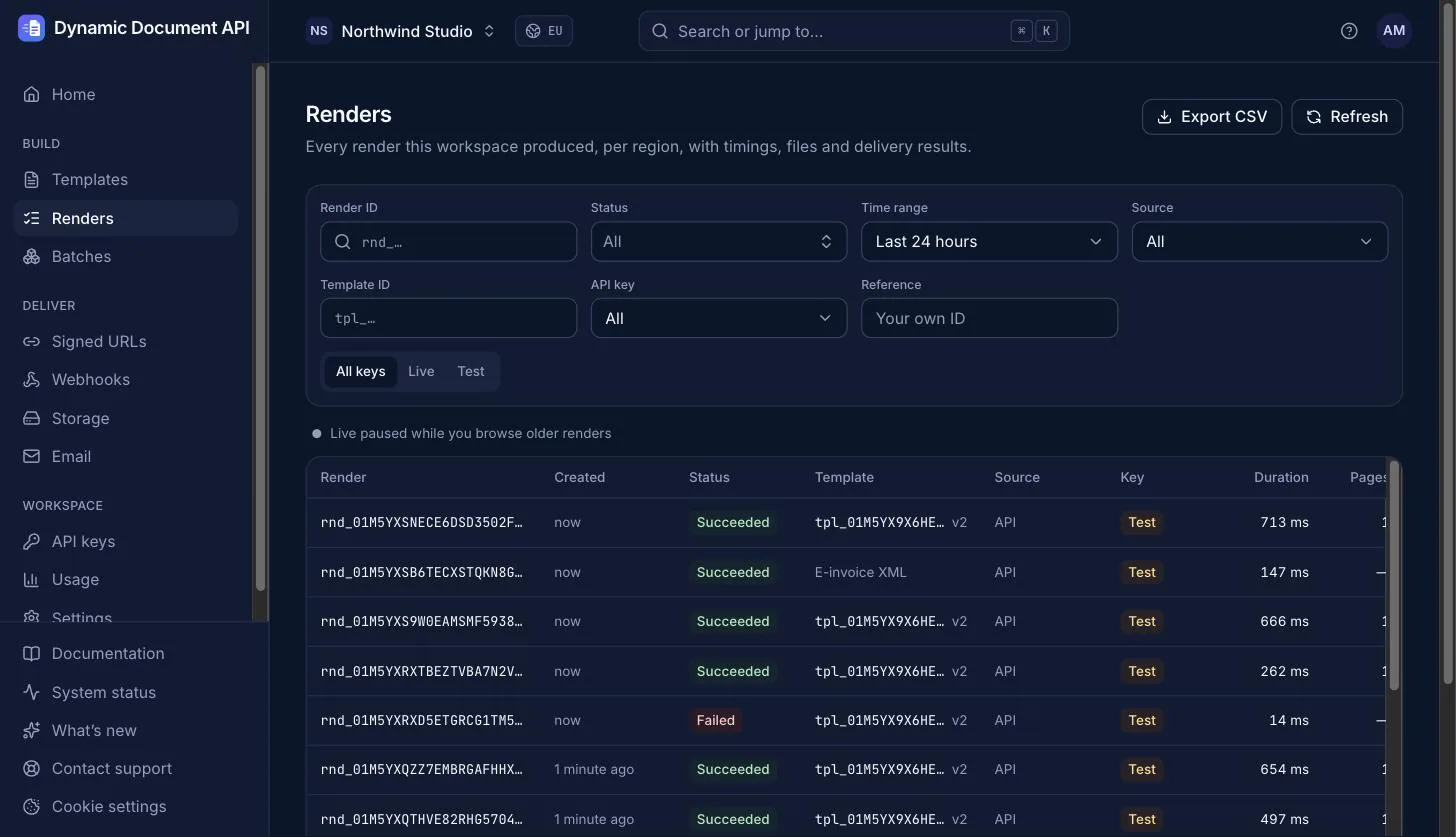
Every render also appears in the dashboard under Renders, with its status, template version, key and duration. Click one to see its timeline, its files and the validation results.
9. Make it an e-invoice (ZUGFeRD / Factur-X)
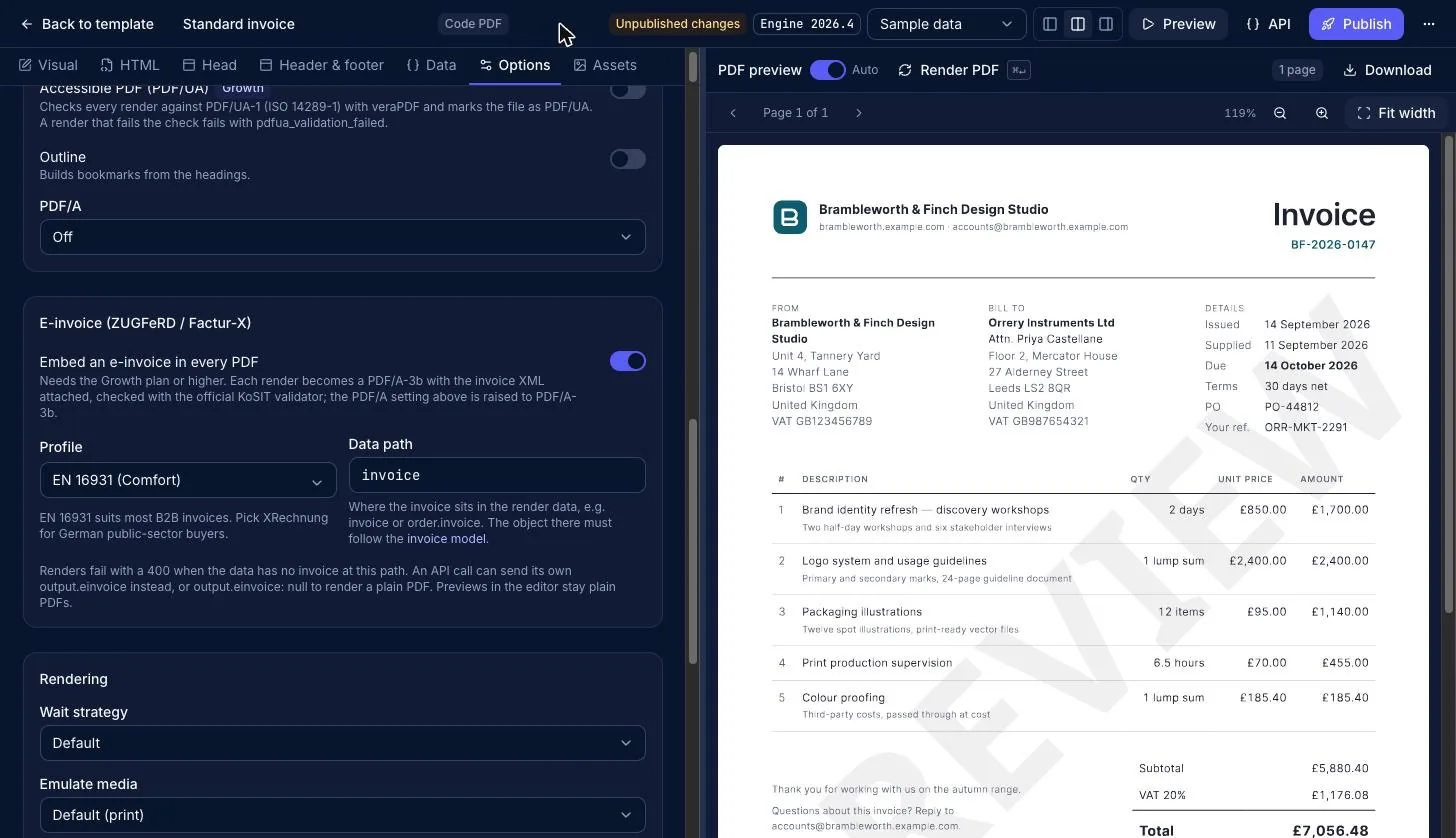
If your workspace is on the Growth plan or higher, the PDF you rendered in step 7 is already a ZUGFeRD / Factur-X invoice. Open the template's Options tab and scroll to E-invoice (ZUGFeRD / Factur-X): every invoice template in the gallery ships with Embed an e-invoice in every PDF switched on, with the profile EN 16931 and the data path invoice.
That's why the response in step 8 contained a validation report. For every e-invoice render, the API:
- computes the invoice from your data and generates the EN 16931 XML,
- validates the XML with the KoSIT validator, the reference validator published by KoSIT, the German coordination office for IT standards, which applies the EN 16931, XRechnung and Factur-X rules,
- converts the PDF to PDF/A-3b, embeds the XML as
factur-x.xmland validates the finished file with veraPDF.
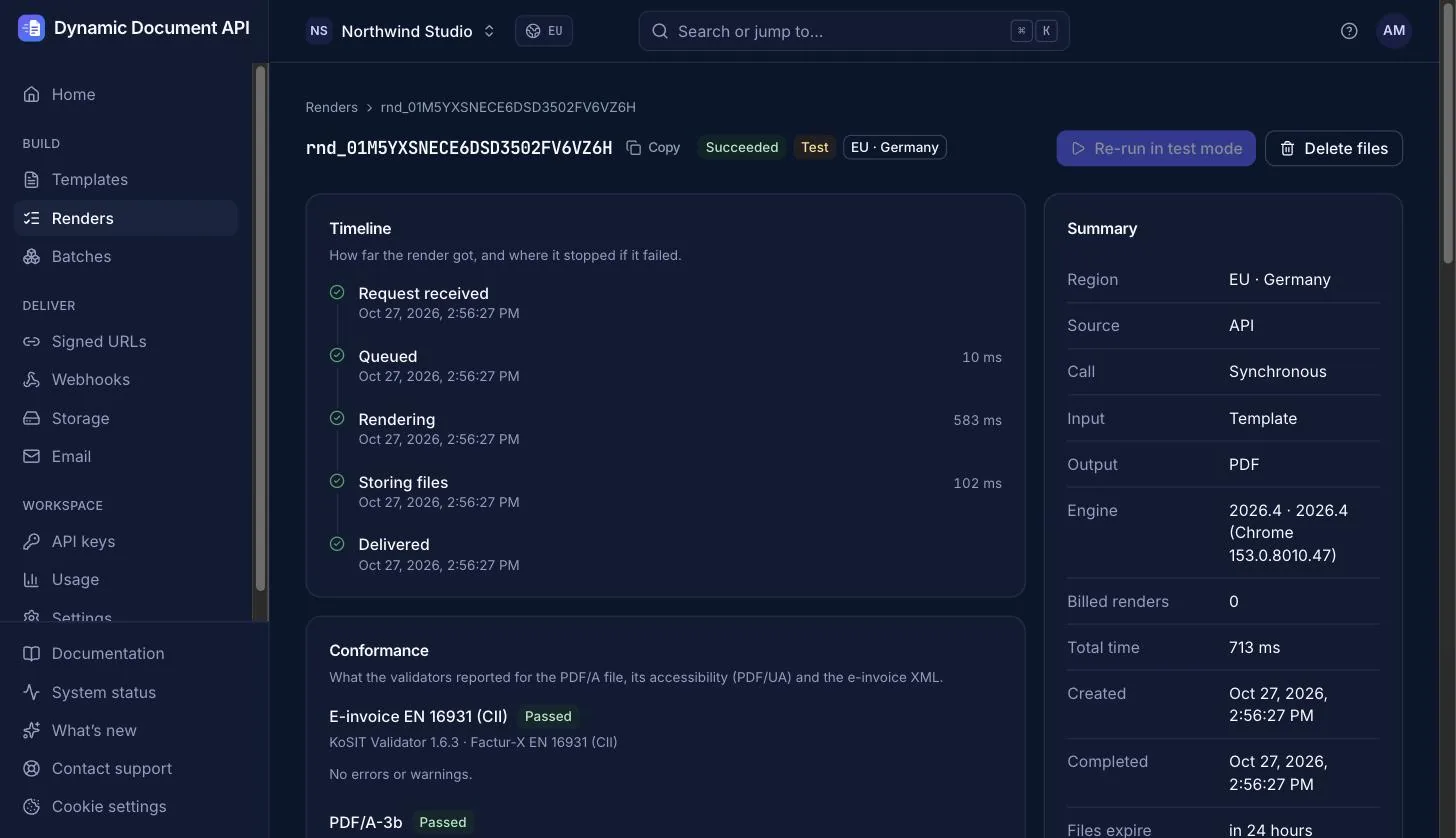
Both validators run unmodified. If a check fails, you don't get a broken invoice; you get an error that says what's wrong (more on that below). The dashboard shows the same report on the render's page:
On Free and Starter, the template's e-invoice setting is skipped: you get a normal PDF and the render carries the warning einvoice_skipped_plan.
Look inside the PDF
The XML travels inside the PDF. Adobe Acrobat Reader shows it in the Attachments panel. You can also extract it with a few lines of Python and the pypdf package:
from pypdf import PdfReader  # pip install pypdf

reader = PdfReader("invoice-NW-2026-0042.pdf")
for name, contents in reader.attachments.items():
    with open(name, "wb") as f:
        f.write(contents[0])
    print("Extracted", name)
The beginning of factur-x.xml looks like this:
<rsm:CrossIndustryInvoice xmlns:rsm="urn:un:unece:uncefact:data:standard:CrossIndustryInvoice:100" …>
  <rsm:ExchangedDocumentContext>
    <ram:GuidelineSpecifiedDocumentContextParameter>
      <ram:ID>urn:cen.eu:en16931:2017</ram:ID>
    </ram:GuidelineSpecifiedDocumentContextParameter>
  </rsm:ExchangedDocumentContext>
  <rsm:ExchangedDocument>
    <ram:ID>NW-2026-0042</ram:ID>
    <ram:TypeCode>380</ram:TypeCode>
    …
    <ram:IncludedNote>
      <ram:Content>TESTRECHNUNG – keine gültige Rechnung. TEST INVOICE – not a valid invoice (created with a test API key).</ram:Content>
    </ram:IncludedNote>
The note "TEST INVOICE – not a valid invoice" is the XML's equivalent of the watermark: an XML file can't carry a watermark, so invoices created with a test key are marked this way. With a live key, the note is gone and the XML is otherwise identical.
Switch to XRechnung for public-sector customers
German public authorities expect XRechnung, a stricter national profile of EN 16931. You don't need a second template; override the template's setting in the request with output.einvoice:
"output": {
  "format": "pdf",
  "filename": "invoice-{{ data.invoice.number }}-xrechnung.pdf",
  "einvoice": { "profile": "XRECHNUNG", "invoice_path": "invoice" }
}
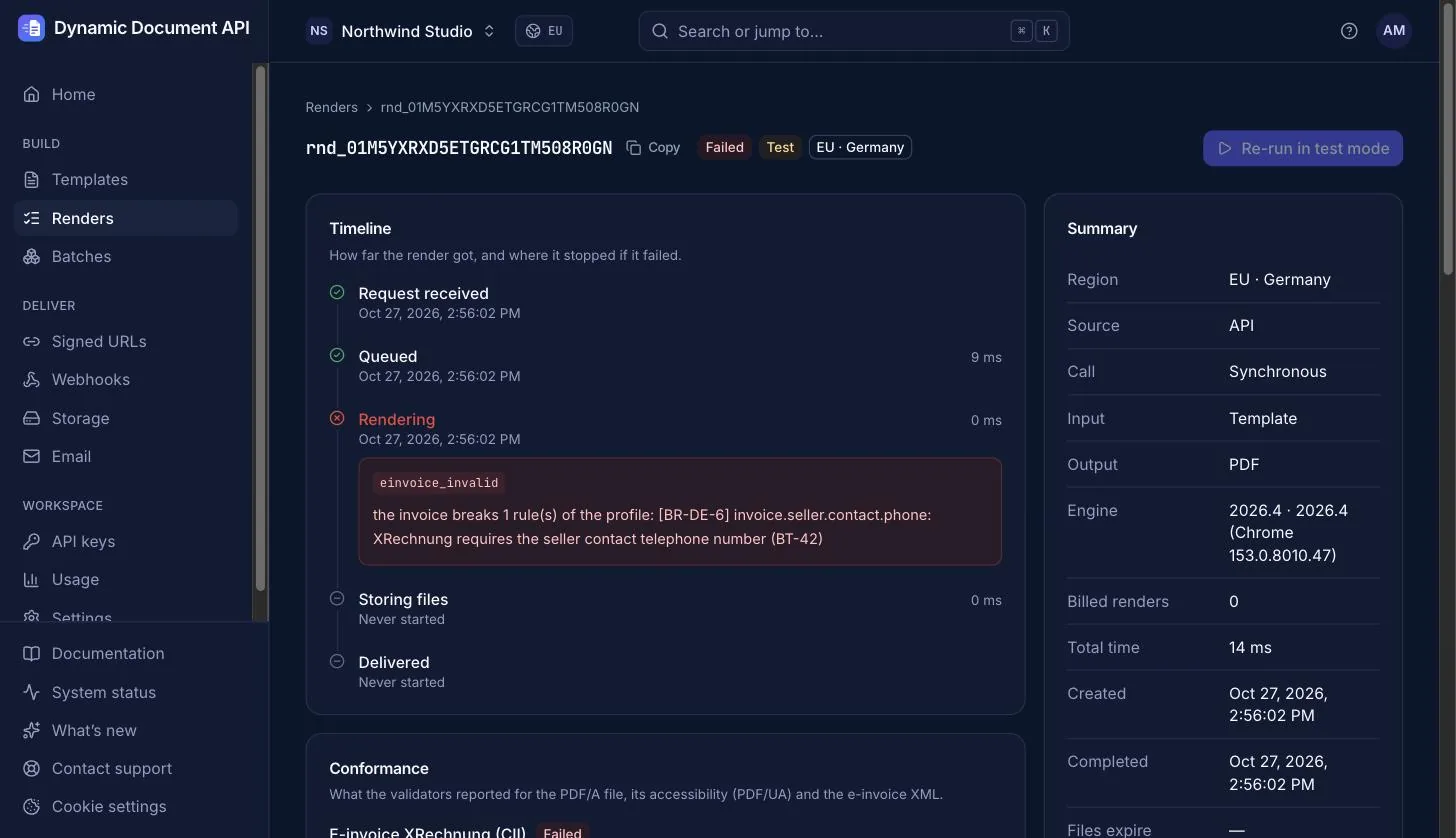
XRechnung has extra rules, and this is where the validation pays off. When we first tried it, our seller contact had no phone number, and the API refused to create the invoice:
{
  "code": "einvoice_invalid",
  "detail": "the invoice breaks 1 rule(s) of the profile: [BR-DE-6] invoice.seller.contact.phone: XRechnung requires the seller contact telephone number (BT-42)"
}
The response names the rule (BR-DE-6), the field in your data (invoice.seller.contact.phone) and the business term of the standard (BT-42). The dashboard shows the same message in the render's timeline:
That's why the invoice.json above already contains "phone": "+49 30 1234 5678". With it, the XRechnung PDF passes: the report shows "profile": "XRECHNUNG" and the KoSIT scenario "EN16931 XRechnung (CII)". Failed renders aren't billed, by the way, not even with a live key.
A few more variations:
- No e-invoice for one request: send
"einvoice": nullinoutputand you get a plain PDF, even though the template has the setting switched on. - Other profiles:
BASIC,EXTENDEDand the booking-aid profilesMINIMUMandBASIC_WLare available too.EN16931is the right default for B2B invoices in the EU.
XML only, without a PDF
Some recipients want just the XML file. POST /v1/einvoices takes the invoice model directly, the same invoice object from invoice.json, and returns the XML, in CII or UBL syntax:
curl https://api-eu.dynamicdocumentapi.com/v1/einvoices \
  -H "Authorization: Bearer $DYNAMIC_DOCUMENT_API_KEY" \
  -H "Idempotency-Key: xrechnung-NW-2026-0042" \
  -H "Content-Type: application/json" \
  --fail-with-body \
  -o NW-2026-0042.xml \
  -d @- <<EOF
{
  "profile": "XRECHNUNG",
  "syntax": "ubl",
  "invoice": $(python3 -c 'import json; print(json.dumps(json.load(open("invoice.json"))["invoice"]))'),
  "delivery": { "type": "binary" }
}
EOF
The Python one-liner picks the invoice object out of invoice.json; with jq installed, $(jq .invoice invoice.json) does the same. The result is a UBL 2.1 XRechnung 3.0 file, validated like the PDFs.
Who is responsible for what
The API guarantees that the files conform to the format, checked against the official schemas and rules. The content of your invoices, their tax correctness and their transmission (for example through a certified platform in France or the e-invoicing portals of German authorities) remain your responsibility. Read the e-invoicing guide for all profiles, fields and rules.
10. Check e-invoices you receive
Receiving is the part that's already mandatory in Germany. Before a supplier's invoice goes into your accounting system, you can check it with the same validators: POST /v1/einvoices/validate takes a hybrid PDF (Factur-X, ZUGFeRD 2.x or XRechnung) or a standalone CII or UBL XML, from any sender. Checks are available on every plan, Free included.
Pretend the invoice from step 7 just arrived by email. Upload the file, then pass the upload's ID as the source:
UPLOAD_ID=$(curl -s https://api-eu.dynamicdocumentapi.com/v1/uploads \
  -H "Authorization: Bearer $DYNAMIC_DOCUMENT_API_KEY" \
  -F "file=@invoice-NW-2026-0042.pdf" \
  | python3 -c 'import json, sys; print(json.load(sys.stdin)["id"])')

curl https://api-eu.dynamicdocumentapi.com/v1/einvoices/validate \
  -H "Authorization: Bearer $DYNAMIC_DOCUMENT_API_KEY" \
  -H "Idempotency-Key: check-NW-2026-0042" \
  -H "Content-Type: application/json" \
  -d "{ \"source\": { \"upload_id\": \"$UPLOAD_ID\" }, \"reference\": \"inbox-NW-2026-0042\" }"
The answer is a render object without files, and the verdict is in result (shortened):
{
  "id": "rnd_01M73P9MH3EQ5SDJN3SRB7JYSG",
  "object": "render",
  "status": "succeeded",
  "test": true,
  "kind": "einvoice_validation",
  "files": [],
  "billed_renders": 0,
  "result": {
    "valid": true,
    "document": { "container": "pdf", "attachment": "factur-x.xml", "syntax": "cii", "profile": "EN16931" },
    "conformance": {
      "pdfa": { "level": "3b", "status": "passed", "validator": "veraPDF 1.30.2", "errors": [], "warnings": [] },
      "einvoice": { "status": "passed", "validator": "KoSIT Validator 1.6.3", "scenario": "Factur-X EN 16931 (CII)", "errors": [], "warnings": [] }
    }
  },
  "reference": "inbox-NW-2026-0042"
}
result.valid is true when the XML passed and, for a PDF, the PDF passed PDF/A-3b too. An invalid invoice isn't an error: it also answers 200, with "valid": false, and the reports list every broken rule. Most PDFs in an inbox aren't e-invoices yet; for those, the API answers 422 einvoice_not_found, so route them to manual handling instead of treating them as a failure.
With a test key, checks are free and limited to 25 per workspace and day. A live check is billed as one render. See Validate e-invoices for the supported formats, the other sources and all errors.
11. Go live
Your integration works. Before you create real invoices, go through this list:
- Verify your email address. Test keys work right away, but live keys can't render until the email address is verified.
- Create a live key with the Render only permission. If your servers have fixed IP addresses, add them to the key's IP allowlist, and restrict the key to your invoice templates.
- Store the key as a secret in your platform's secret manager or environment variables. Never send it to a browser or a mobile app.
- Keep sending an
Idempotency-Keyderived from the invoice number, so a retry can never create a second invoice. - Handle errors deliberately. Retry
429and5xxresponses after the time in theRetry-Afterheader; fix4xxrequests instead of retrying them. Log therequest_idfrom error responses; it helps support find your request. - For many invoices at once, for example a monthly billing run, use batches and webhooks instead of one synchronous request per invoice.
- Decide how long files live. Set a retention period for your workspace, deliver to your own storage, or use zero-retention delivery for sensitive data.
Live renders are counted against your plan: one render per document of up to 50 pages, and the e-invoice layer doesn't cost extra. See pricing for the plans.
Frequently asked questions
Can I use my own invoice design instead of a gallery template?
Yes. Start from Blank PDF and write your own HTML and CSS, or paste an existing invoice template. You can also skip stored templates and send HTML directly with "input": { "type": "html", "html": "…" }. Stored templates have the advantage that designers can change them without a deployment and every change is versioned.
What happens with long invoices that span several pages?
The template is rendered by a real browser engine, so tables break across pages like in a browser's print view. The Standard invoice repeats the table header on every page and prints page numbers in the footer.
Do I need an SDK?
No. As this tutorial shows, plain HTTP requests are enough. If you prefer a typed client, there are SDKs and integrations, including no-code integrations for Zapier and n8n.
Where is my data processed?
This tutorial uses the EU region (api-eu.dynamicdocumentapi.com, data centers in Germany). Renders and files stay in the region your workspace uses.
Is the e-invoice accepted by my customer's software?
The XML follows EN 16931 and is checked with the KoSIT reference validator before you receive it. Ask your customer which profile they expect: EN16931 for most B2B invoices, XRECHNUNG for German public-sector buyers.
Next steps
- E-invoicing guide: profiles, the full invoice model, credit notes, reverse charge
- Validate e-invoices: check the invoices you receive
- E-invoicing API: what the e-invoicing layer covers, also in German
- Template language: loops, conditions, filters for dates, numbers and currencies
- Invoice templates in the gallery: ready-made designs to start from
Authentication and test mode
Authenticate with API keys, choose scopes, use test mode, roll and revoke keys, and find the API host for your data.
Invoice PDFs from Google Sheets with n8n
Turn rows in a Google Sheet into branded PDF invoices, email each one with Gmail and mark the rows as sent, with the verified Dynamic Document API node for n8n. Workflow and sample sheet included.