Invoice PDFs from Google Sheets with n8n
Turn rows in a Google Sheet into branded PDF invoices, email each one with Gmail and mark the rows as sent, with the verified Dynamic Document API node for n8n. Workflow and sample sheet included.
This tutorial builds an n8n workflow that reads invoice lines from a Google Sheet, groups them into invoices, renders each invoice as a PDF from a template, emails it to the customer with Gmail and marks the rows as sent, so the next run doesn't send them again.
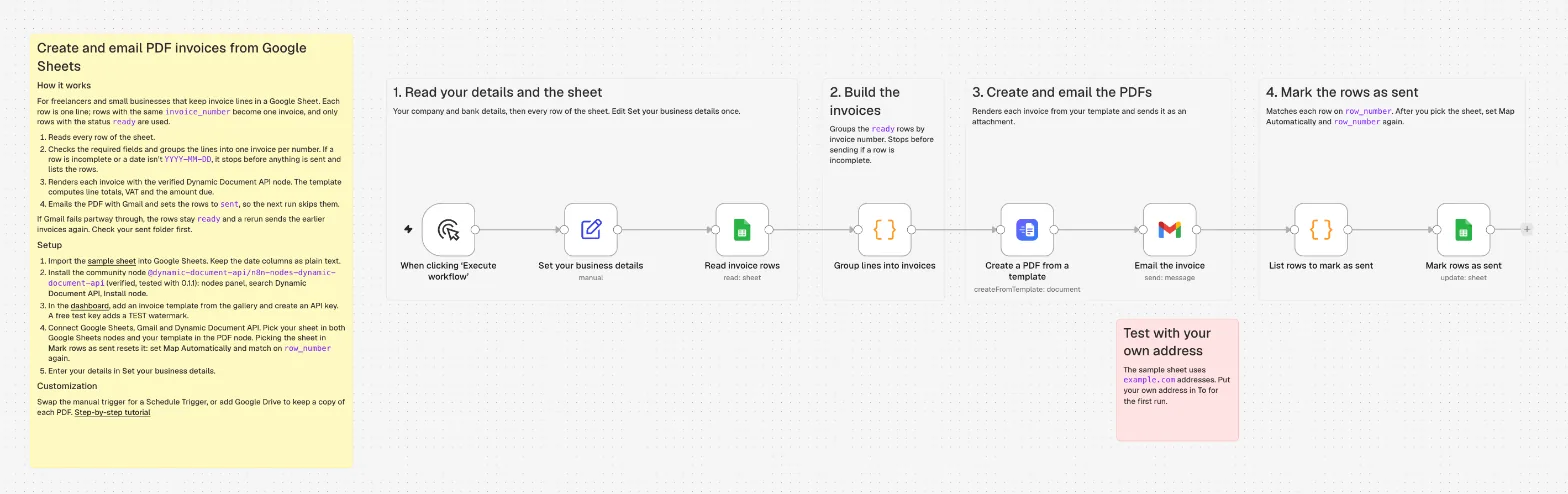
It takes about 15 minutes. You need:
- n8n, on n8n Cloud or self-hosted. The screenshots show n8n Cloud.
- A Google account for Google Sheets and Gmail.
- A Dynamic Document API account. The free plan is enough: a test key renders free PDFs with a TEST watermark.
Shortcut: import the finished workflow and skip to connect your accounts. Download the workflow and the sample sheet, or get both from the repository on GitHub. In n8n, open a new workflow, open the three-dot menu at the top, choose Import from File and select the JSON file. The notes on the canvas repeat the setup steps.
1. Prepare the sheet
Create a Google Sheet called Invoices with one row per invoice line. Rows with the same invoice_number become one invoice, and only rows with the status ready are processed.
| Column | Example | Notes |
|---|---|---|
invoice_number | INV-2026-101 | Same value on every line of one invoice |
issue_date, due_date | 2026-11-03 | ISO dates, YYYY-MM-DD |
customer_name, customer_email | Harbour & Pine Café | The email is where the invoice goes |
customer_street, customer_city, customer_postcode | 12 Quay Street, Galway, H91 E2K7 | |
item, description | Website maintenance | One line of the invoice |
quantity, unit, unit_price | 1, MON, 240.00 | Unit codes such as EA, DAY, HUR, MON |
vat_rate | 23 | Percent |
status | ready | ready to send; the workflow writes sent |
The quickest start is the sample sheet: two invoices ready to send and one draft. Import it with File → Import → Upload, choose Replace spreadsheet, and clear Convert text to numbers, dates, and formulas.
Keep dates as text
If Google Sheets turns 2026-11-03 into a date, n8n reads it back in your locale's format, such as 03/11/2026, and the template can't parse it. Format the columns as plain text (Format → Number → Plain text) before you enter data, or clear the conversion option when you import.
2. Add an invoice template
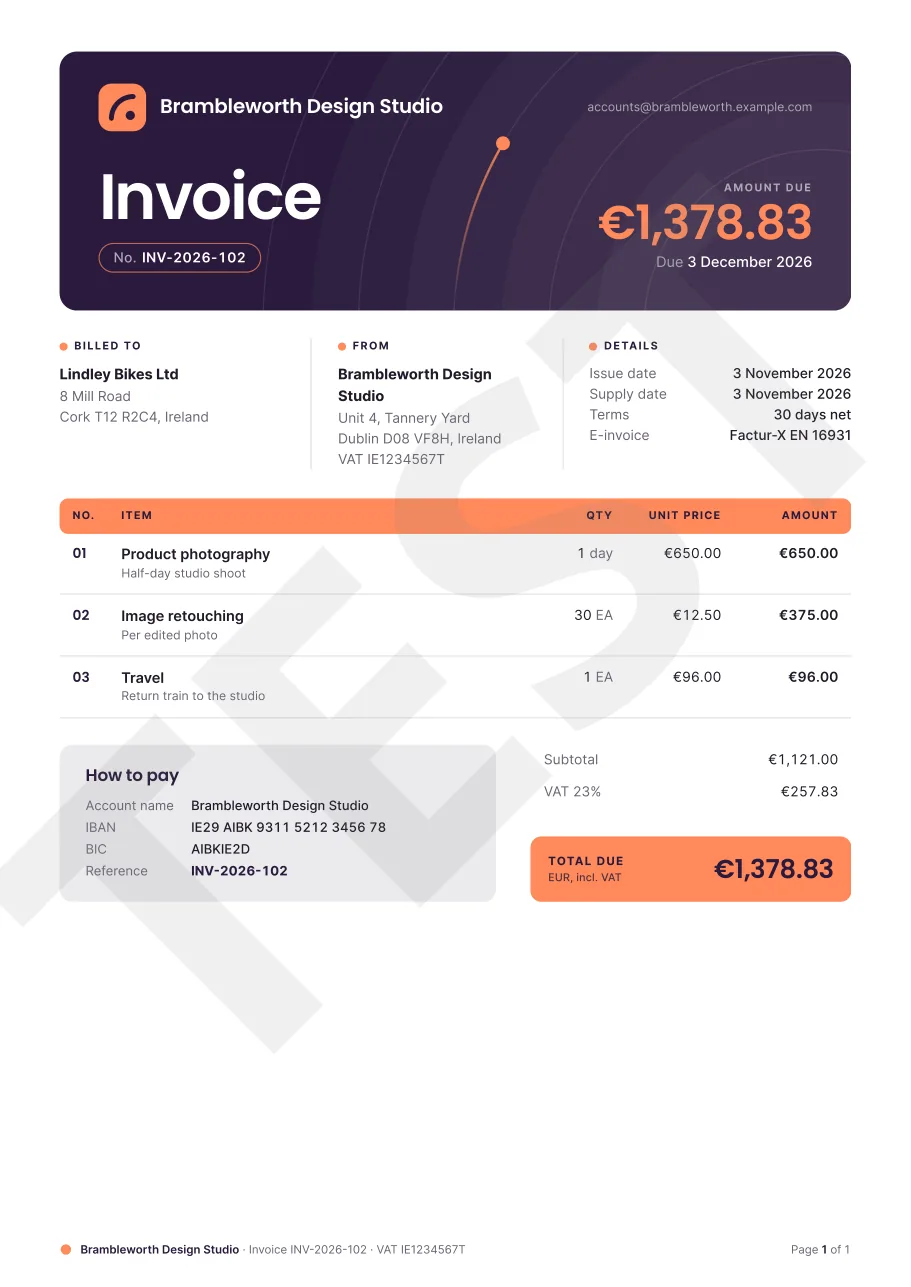
In the dashboard at https://app.dynamicdocumentapi.com, open the template gallery and add one of the invoice templates to your workspace. You can preview them all in the public gallery. This tutorial uses Bold brand invoice. Every invoice template in the gallery reads the same invoice object, so you can switch templates later without changing the workflow. Publish the template if it opens as a draft: only published templates appear in n8n.
3. Install the node and create a key
In n8n, open the nodes panel (+), search for Dynamic Document API and choose Install node. The node is verified by n8n, so it works on n8n Cloud as well.
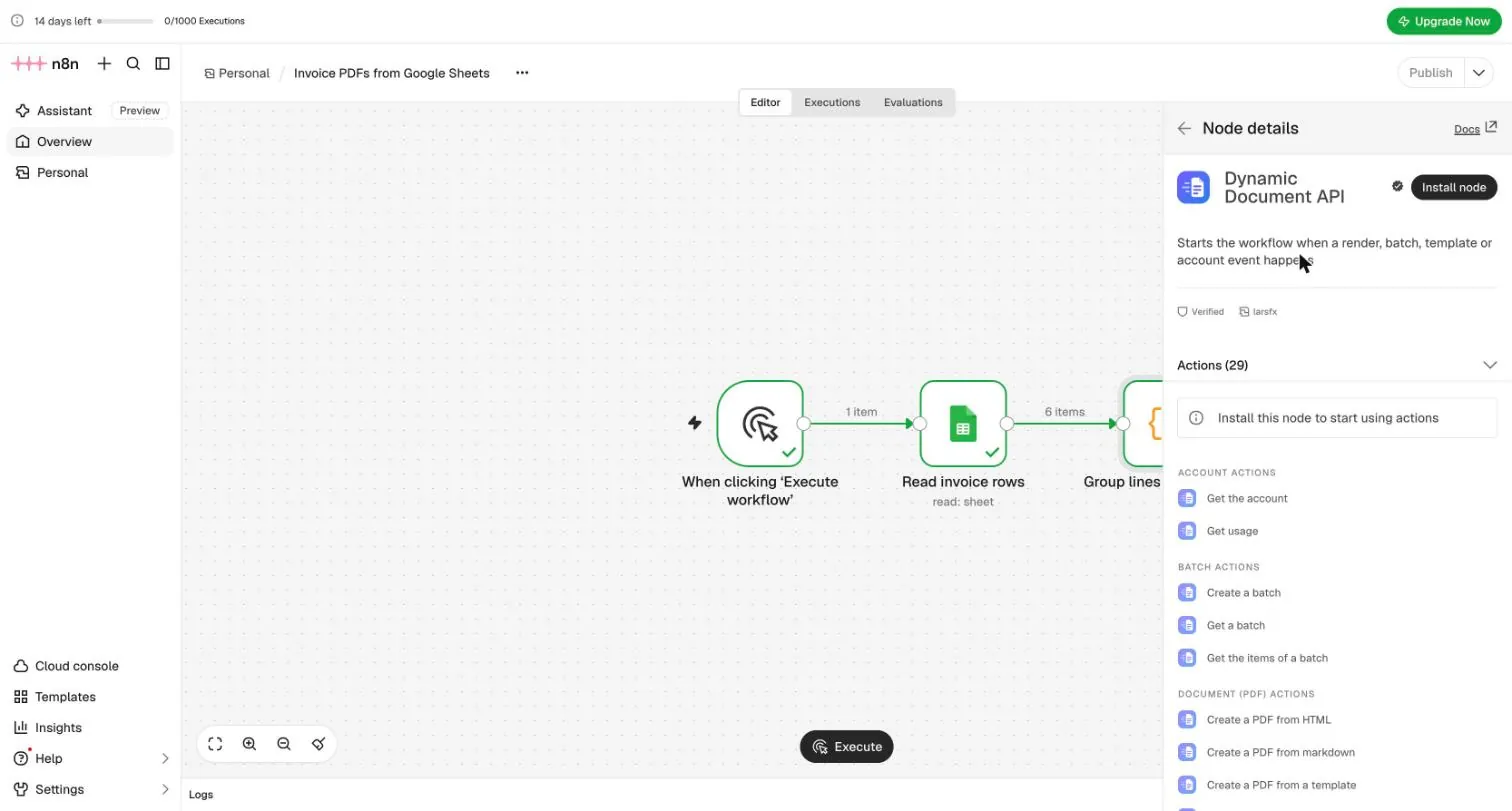
Create an API key under API keys in the dashboard. While you build, use a test key (dda_test_…): test renders are free, carry a TEST watermark and don't count against your plan. The scopes render:write, renders:read and templates:read are enough. More in n8n and authentication.
4. Add your details and read the rows
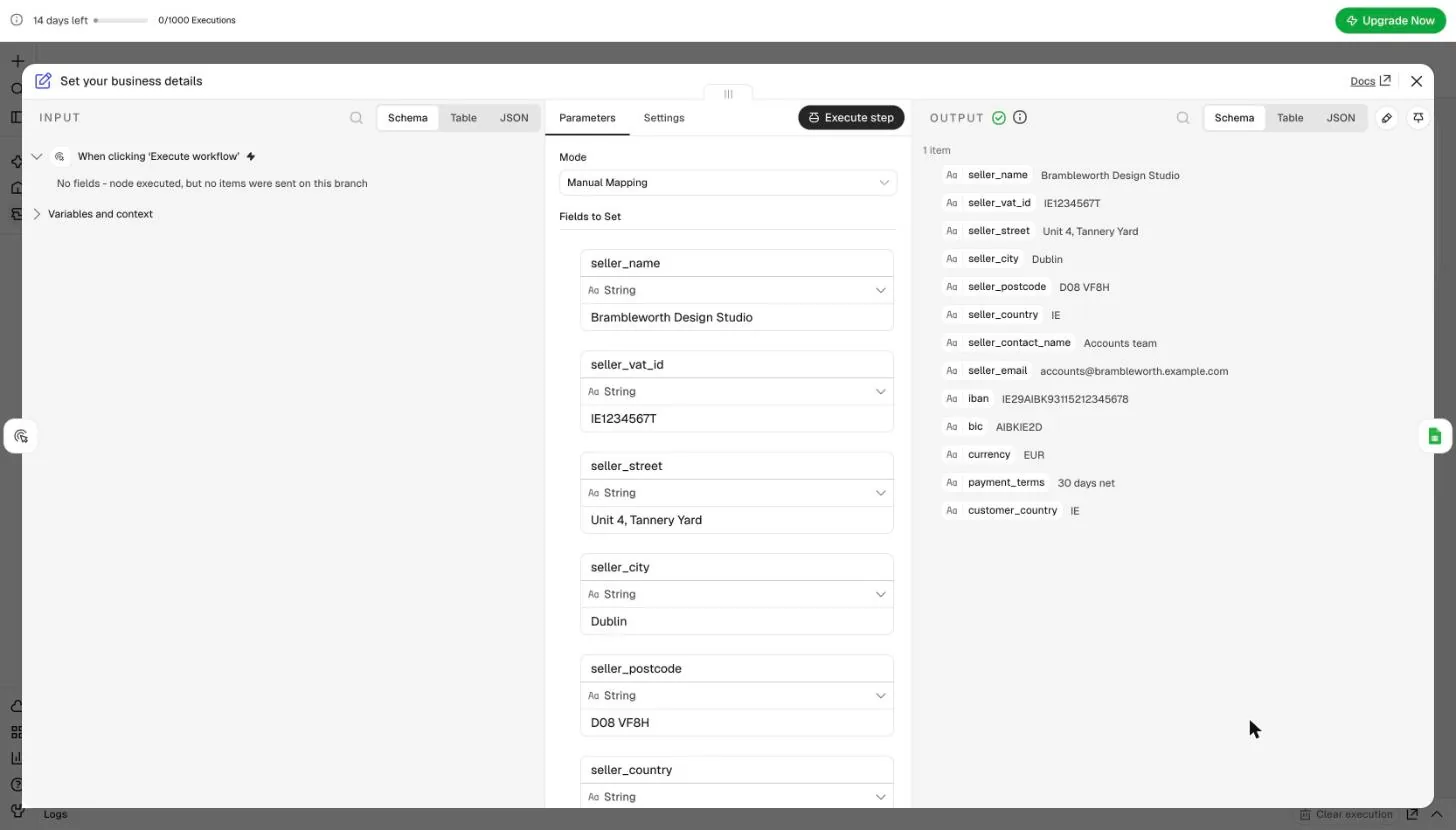
Start the workflow with Trigger manually. Then add Edit Fields (Set), rename it to Set your business details and add these fields, all of type String:
| Field | Example | Notes |
|---|---|---|
seller_name, seller_vat_id | Brambleworth Design Studio, IE1234567T | Your company and VAT ID |
seller_street, seller_city, seller_postcode, seller_country | Unit 4, Tannery Yard, Dublin, D08 VF8H, IE | Country as a two-letter code |
seller_contact_name, seller_email | Accounts team, accounts@brambleworth.example.com | Shown on the invoice |
iban, bic | IE29AIBK93115212345678, AIBKIE2D | Where customers pay |
currency, payment_terms | EUR, 30 days net | The same for every invoice |
customer_country | IE | Used for every customer address |
Keeping these values in one step means you never touch the code to change them.
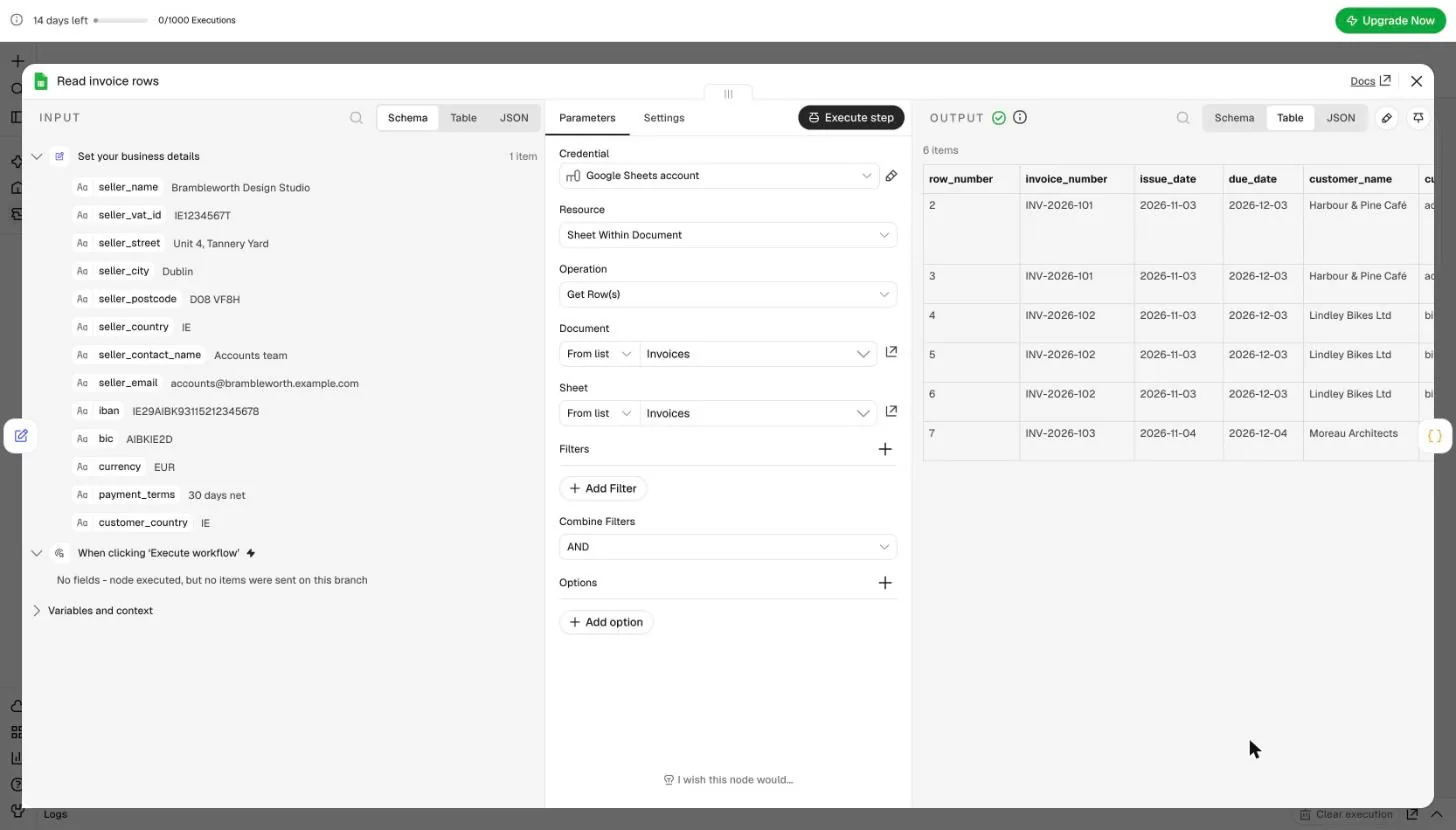
Next, add Google Sheets → Get row(s) in sheet. Choose Sign in with Google, then pick the Invoices document and sheet from the lists. Run the step: each row of the sheet becomes one item, and n8n adds its row_number.
Tick every box when Google asks
Google's consent screen may list the permissions as separate checkboxes. If the box for Google Sheets stays empty, n8n still finds the document but every read fails with 404 Requested entity was not found. Remove n8n's access under Google Account → Third-party connections, reconnect the credential in n8n and choose Select all.
5. Group the lines into invoices
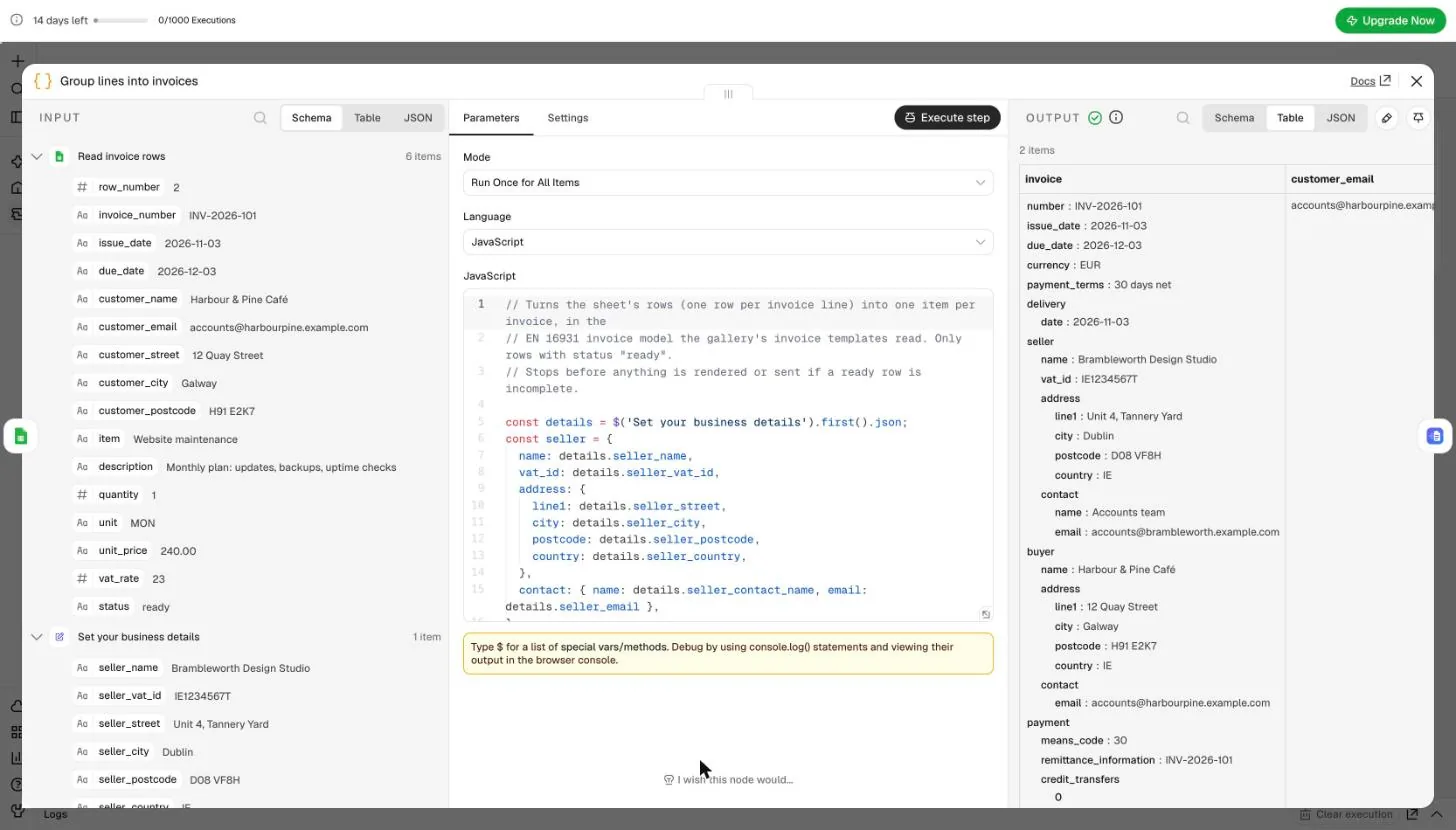
Add a Code step named Group lines into invoices, in JavaScript, mode Run Once for All Items, and paste the code below. It keeps the rows with the status ready, groups them by invoice number and builds one item per invoice in the invoice model the templates read, with your details from the previous step. It also keeps each invoice's row numbers for the last step.
// Turns the sheet's rows (one row per invoice line) into one item per invoice, in the
// EN 16931 invoice model the gallery's invoice templates read. Only rows with status "ready".
// Stops before anything is rendered or sent if a ready row is incomplete.

const details = $('Set your business details').first().json;
const seller = {
  name: details.seller_name,
  vat_id: details.seller_vat_id,
  address: {
    line1: details.seller_street,
    city: details.seller_city,
    postcode: details.seller_postcode,
    country: details.seller_country,
  },
  contact: { name: details.seller_contact_name, email: details.seller_email },
};
const bank = { account_id: details.iban, account_name: details.seller_name, bic: details.bic };

const required = ['invoice_number', 'issue_date', 'due_date', 'customer_name', 'customer_email', 'item', 'quantity', 'unit_price', 'vat_rate'];
const isoDate = /^\d{4}-\d{2}-\d{2}$/;
const problems = [];

const invoices = new Map();
for (const { json: row } of $input.all()) {
  if (String(row.status).trim().toLowerCase() !== 'ready') continue;

  const missing = required.filter((field) => String(row[field] ?? '').trim() === '');
  if (missing.length) problems.push(`row ${row.row_number}: ${missing.join(', ')} empty`);
  for (const field of ['issue_date', 'due_date']) {
    if (row[field] && !isoDate.test(String(row[field]))) {
      problems.push(`row ${row.row_number}: ${field} "${row[field]}" is not YYYY-MM-DD (format the column as plain text)`);
    }
  }
  for (const field of ['quantity', 'unit_price', 'vat_rate']) {
    if (row[field] !== '' && !Number.isFinite(Number(row[field]))) {
      problems.push(`row ${row.row_number}: ${field} "${row[field]}" is not a number`);
    }
  }
  if (problems.length) continue;

  const number = String(row.invoice_number).trim();
  if (!invoices.has(number)) {
    invoices.set(number, {
      invoice: {
        number,
        issue_date: row.issue_date,
        due_date: row.due_date,
        currency: details.currency,
        payment_terms: details.payment_terms,
        delivery: { date: row.issue_date },
        seller,
        buyer: {
          name: row.customer_name,
          address: {
            line1: row.customer_street,
            city: row.customer_city,
            postcode: row.customer_postcode,
            country: details.customer_country,
          },
          contact: { email: row.customer_email },
        },
        payment: { means_code: '30', remittance_information: number, credit_transfers: [bank] },
        lines: [],
      },
      customer_email: row.customer_email,
      row_numbers: [],
    });
  }

  invoices.get(number).row_numbers.push(row.row_number);

  invoices.get(number).invoice.lines.push({
    quantity: String(row.quantity),
    unit: row.unit || 'EA',
    price: { net: Number(row.unit_price).toFixed(2) },
    tax: { category: 'S', rate: String(row.vat_rate) },
    item: { name: row.item, description: row.description || undefined },
  });
}

if (problems.length) {
  throw new Error(`Nothing was sent. Fix these rows first: ${problems.join('; ')}`);
}

return [...invoices.values()].map((json) => ({ json }));
Before it groups anything, the code checks every ready row: required fields filled, numbers that are numbers, dates as YYYY-MM-DD. If a row fails, the step stops with a list of the rows to fix, and nothing is rendered or sent. The template computes the line totals, the VAT breakdown and the amount due itself, so the sheet only needs quantities, prices and rates. Run the step: six rows become two invoices, and the draft is left out.
6. Create the PDF
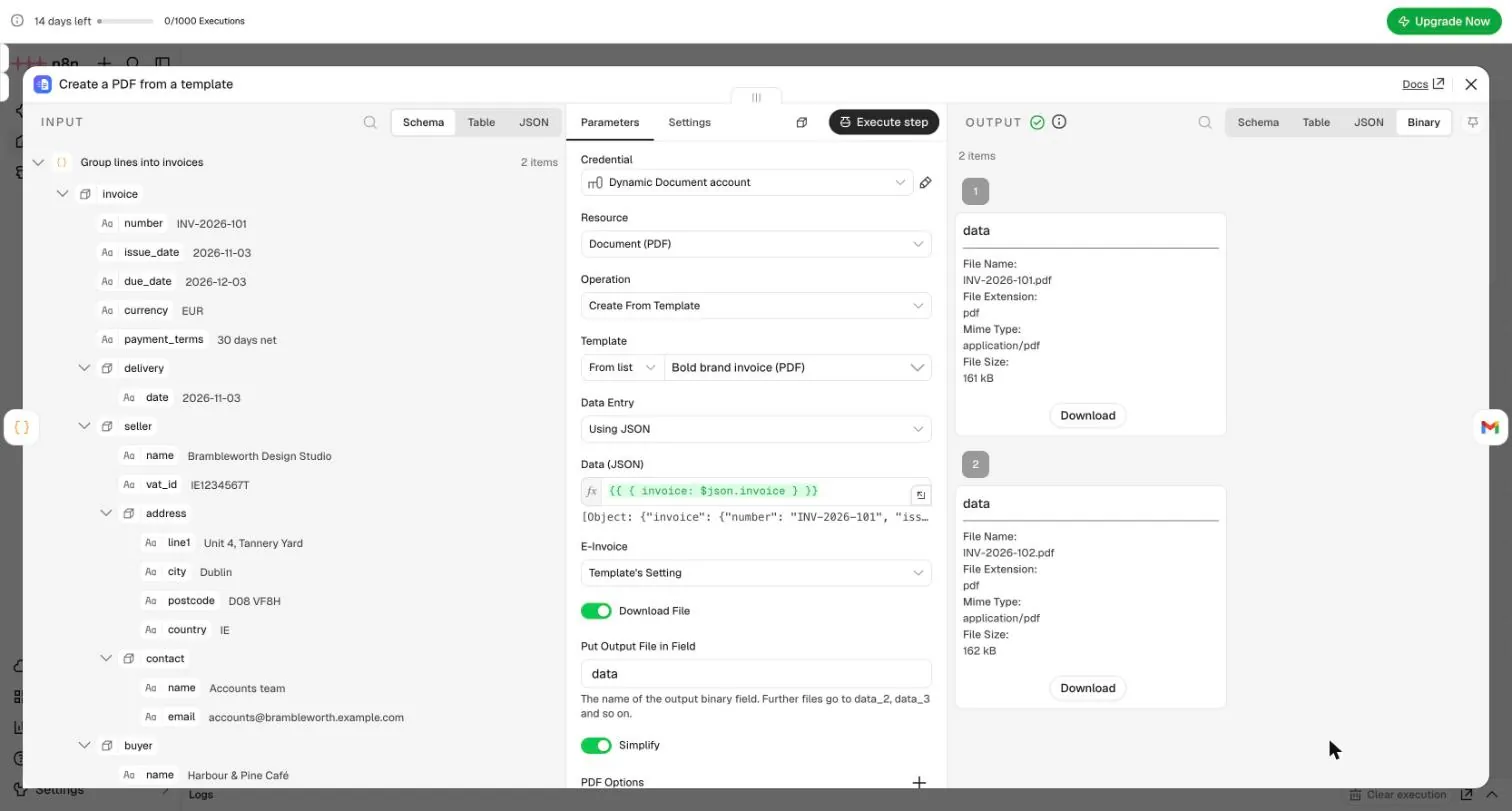
Add Dynamic Document API → Create a PDF from a template and select your credential. Set:
| Field | Value |
|---|---|
| Template | Bold brand invoice (from the list) |
| Data Entry | Using JSON |
| Data (JSON) | {{ { invoice: $json.invoice } }} as an expression |
| Options → File Name | {{ $json.invoice.number }}.pdf as an expression |
Run the step. Each invoice comes back as a PDF file in the binary field data, ready to attach.
On the Growth plan and higher, the gallery's invoice templates also embed the invoice as Factur-X / ZUGFeRD XML, so the PDF is an e-invoice that accounting software can read. On Free and Starter you get a plain PDF and the warning einvoice_skipped_plan. See e-invoicing.
7. Email the invoice
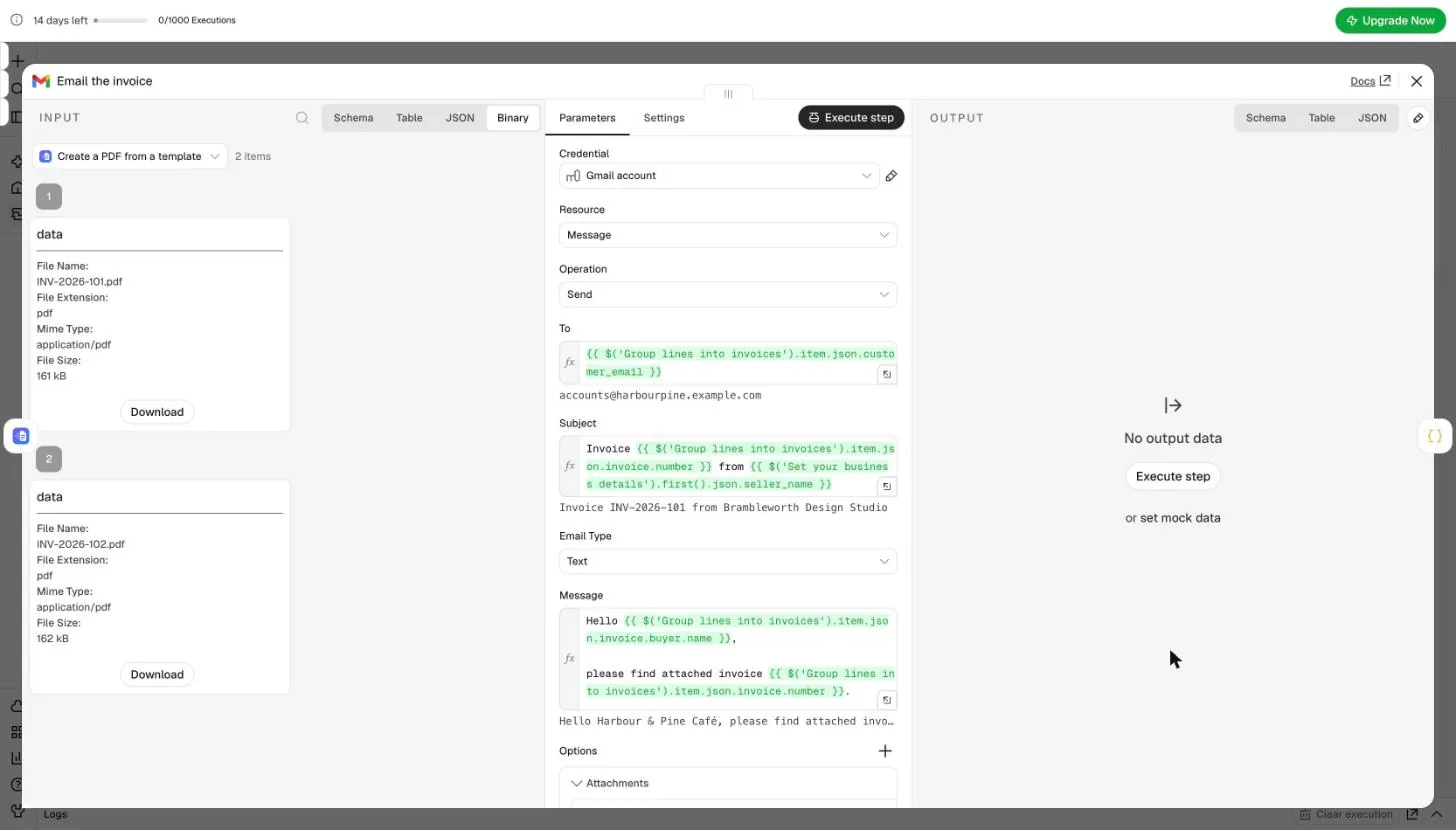
Add Gmail → Send a message, sign in with Google and set:
| Field | Value |
|---|---|
| To | {{ $('Group lines into invoices').item.json.customer_email }} |
| Subject | Invoice {{ $('Group lines into invoices').item.json.invoice.number }} from {{ $('Set your business details').first().json.seller_name }} |
| Email Type | Text |
| Message | Your text, for example with {{ $('Group lines into invoices').item.json.invoice.buyer.name }} |
| Options → Attachments | Attachment field name data |
The expressions read from the earlier steps by name, because the PDF step's output holds the file, not the invoice data.
Test with your own address
While you test, put your own email address in To. The sample sheet uses example.com addresses, which can't receive mail.
8. Mark the rows as sent
An invoice usually has several rows, and Google Sheets' update step changes only the first row that matches a value. So turn the invoices back into one item per row first. Add a Code step:
// One item per sheet row of the invoices that were emailed, for the update step.
return $('Group lines into invoices').all().flatMap((invoice) =>
  invoice.json.row_numbers.map((row_number) => ({ json: { row_number, status: 'sent' } })),
);
Then add Google Sheets → Update row in sheet and pick the same document and sheet. After that, set Mapping Column Mode to Map Automatically and Column to match on to row_number. Pick the sheet first: choosing a sheet resets both settings. Each item updates exactly one row.
Run it
Choose Execute workflow. With the sample sheet, two emails go out, each with its invoice attached, and the five rows of the two invoices change to sent. Run it again and nothing happens: there are no ready rows left.
If you imported the workflow, set it up first:
- Pick your Google Sheets, Gmail and Dynamic Document API credentials in their steps.
- Choose your document and sheet in Read invoice rows and Mark rows as sent.
- In Mark rows as sent, set Mapping Column Mode to Map Automatically and Column to match on to
row_numberagain. Picking the sheet resets them. - Select your template in Create a PDF from a template.
- Enter your details in Set your business details, and put your own address in To in Email the invoice for the first run.
Going further
- Run on a schedule. Replace the manual trigger with Schedule Trigger, for example every weekday at 9:00.
- Go live. Swap the test key for a live key (
dda_live_…) to remove the watermark. Each invoice is then one render on your plan. - Keep a copy. Add Google Drive → Upload file after the PDF step with the binary field
data. - Many invoices at once. For hundreds of documents per run, batches render them in one request (Starter plan and higher).
- Use another template. Any invoice template from the gallery reads the same
invoiceobject. Edit the design in the dashboard; the workflow stays the same.
Troubleshooting
| Problem | Cause and fix |
|---|---|
404 Requested entity was not found in a Google Sheets step | The Google credential is missing the Sheets permission. Reconnect it and tick every box (see step 4). |
| The template is missing from the list | Only published templates appear. Publish it in the dashboard. |
The Code step stops with Nothing was sent. Fix these rows first: … | A ready row is incomplete. Fix the rows it lists in the sheet and run again. |
The Code step reports a date that is not YYYY-MM-DD | The sheet converted the dates. Format the columns as plain text and enter them as YYYY-MM-DD. |
Only the first row of an invoice changes to sent | The update step matches on invoice_number. Use the second Code step and match on row_number. |
| Mark rows as sent asks you to map each column, or Column to match on is empty | Picking the sheet reset the step. Set Map Automatically and row_number again. |
402 plan_feature_unavailable | You set E-Invoice to Embed on the Free or Starter plan. Leave it on the template's setting, or upgrade to Growth. |
Related: the n8n node, template language, headers and footers, e-invoicing.
Authentication and test mode
Authenticate with API keys, choose scopes, use test mode, roll and revoke keys, and find the API host for your data.
HTML to PDF in Node.js with tables, page breaks and page numbers
Render a multi-page report from HTML and JSON in Node.js with %%BRAND%%. Long tables that repeat their header, sections that start on a new page, and a running header and footer with page numbers, in about 60 lines of code and no dependencies.